Pending Activities
The "Pending Activities" page serves as a centralized hub for managing surveys and their associated tasks. This page is designed to facilitate efficient survey management for users with different roles and responsibilities, including global admins, country admins, and editors. By accessing the "Pending Activities" page, users can conveniently filter surveys based on their respective sectors, perform actions such as adding and editing surveys, exporting survey data, importing surveys in bulk, assigning surveys to team members, adding comments for collaboration, and changing survey statuses. This page streamlines the survey management process, enabling users to effectively oversee and coordinate survey-related activities within their designated areas of responsibility.
Viewing Surveys List
What : View Surveys List.
Who : Global Admin, Country Admin, Editor.
How :
- Go to https://tims.unhcr.org/ in your web browser.
- Sign in with your username and password.
- You'll be taken to the Home page after login.
- Open the Pending Activities page
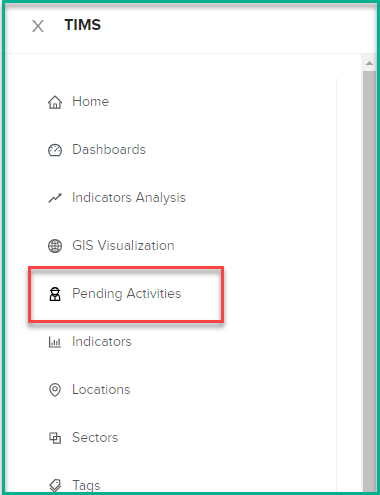
- Click on the "Survey" tab.
-
The page displays the surveys list based on filters.
-
The survey list table will provide the following information for each survey entry:
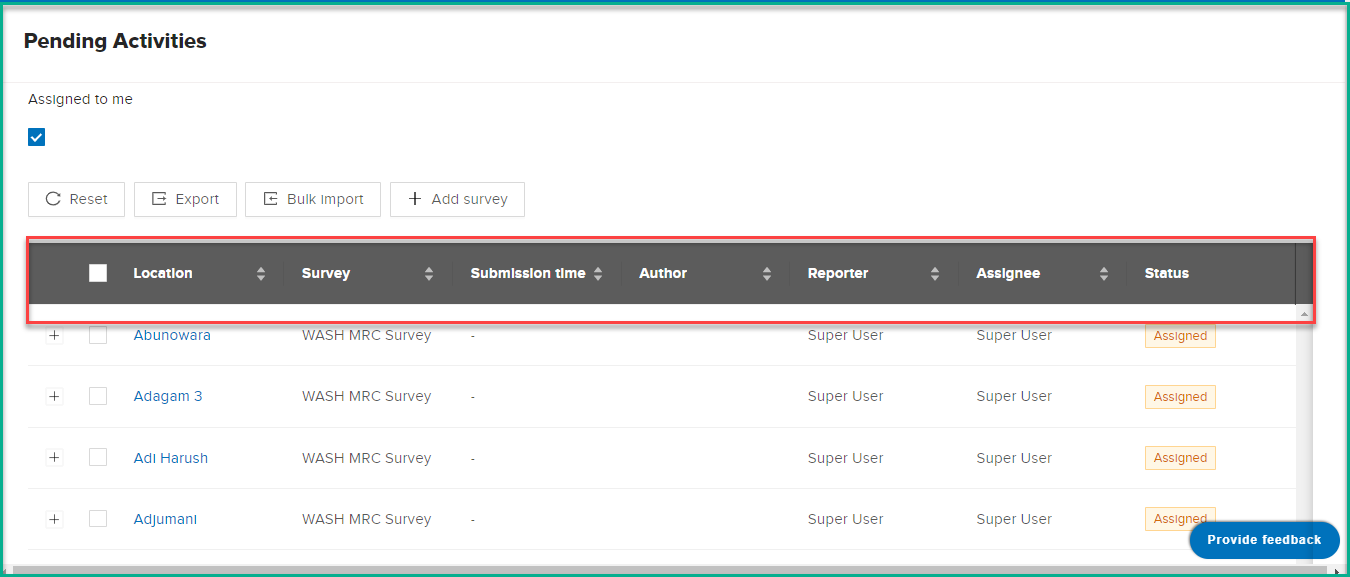
Survey List Table Overview
-
Location :Survey's associated location.
-
Survey : Name of the survey.
-
Submission date : Timestamp of survey submission.
-
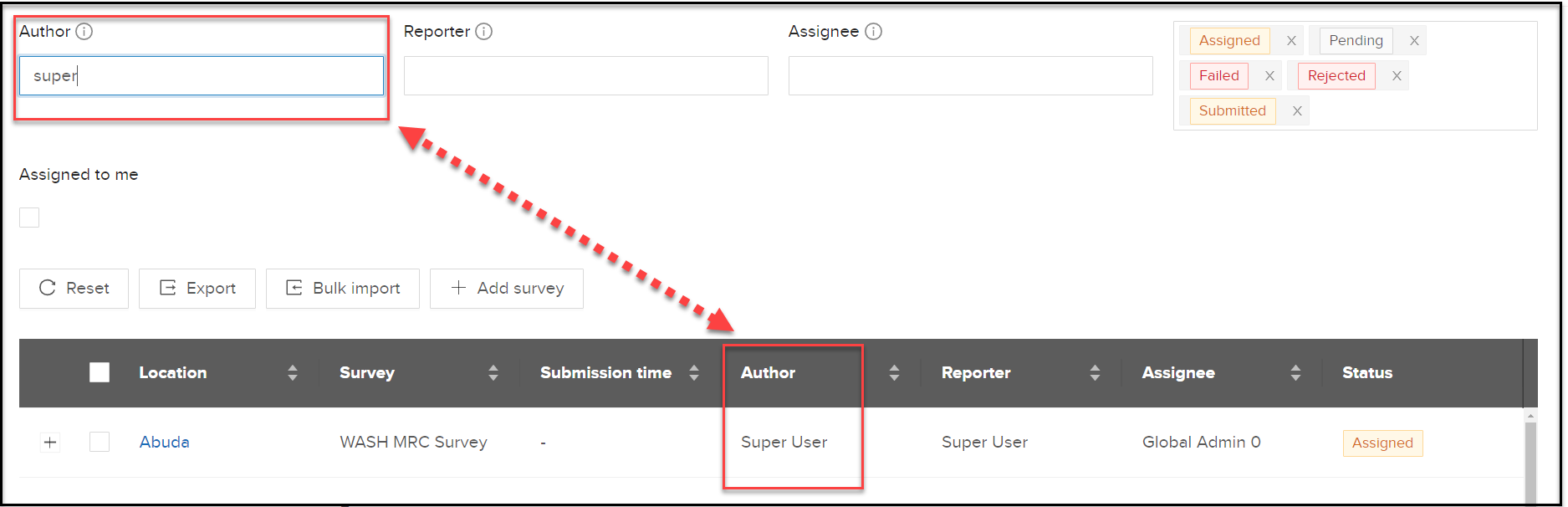
Author : Person who edited the survey data recently.
-
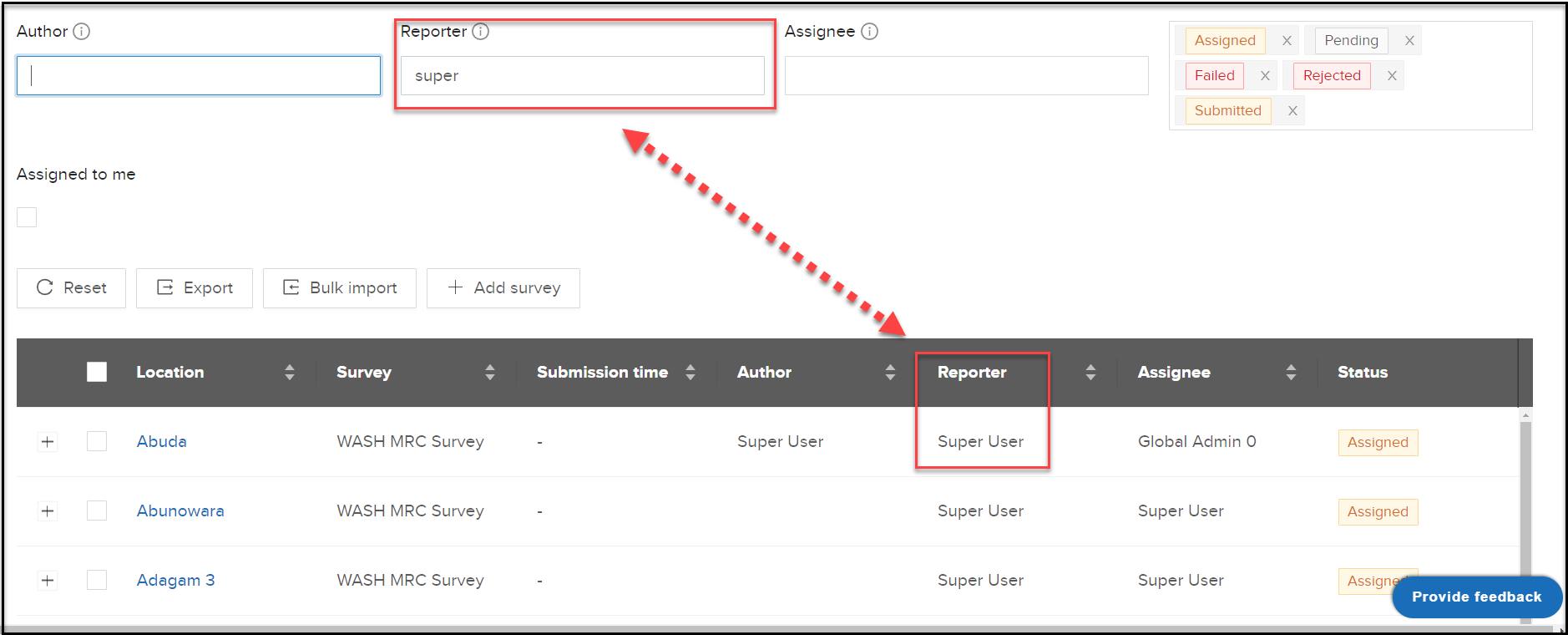
Reporter : Person who created the survey.
-
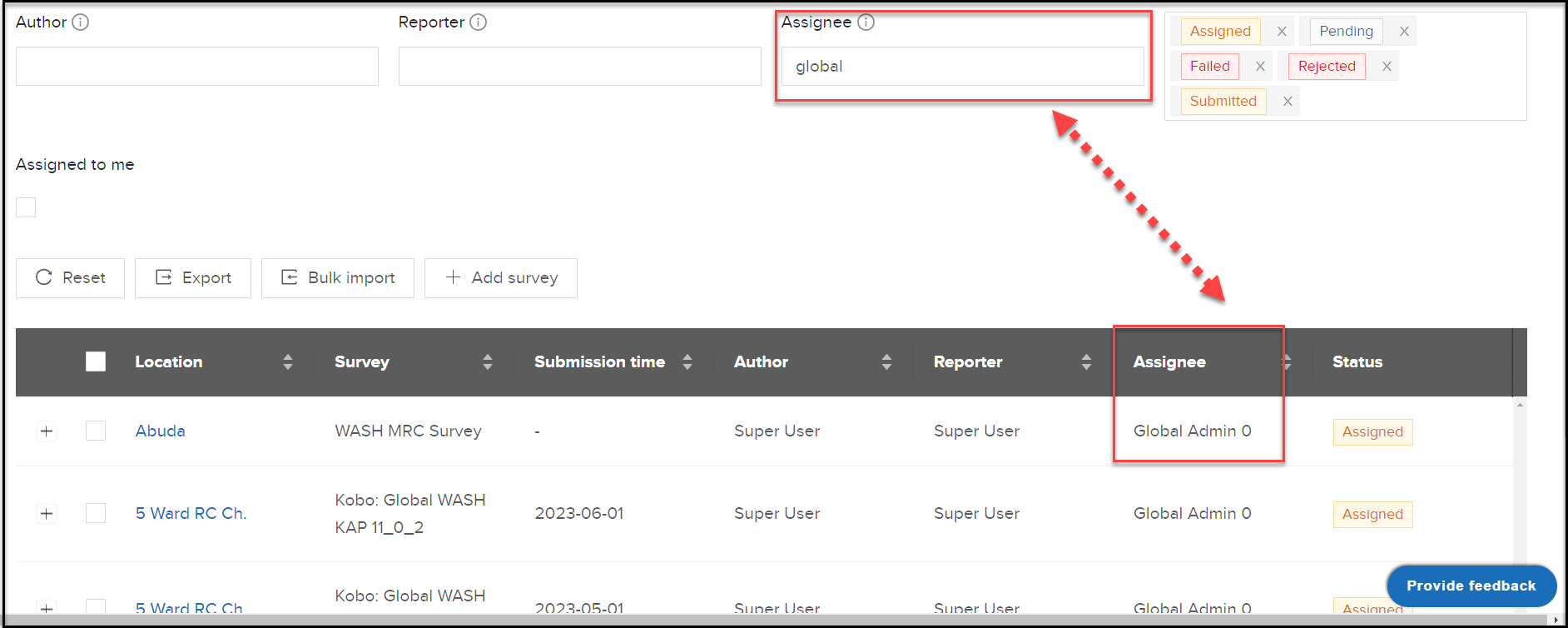
Assignee : User assigned to the survey.
-
Status : Current survey status.
-
Adjust filters to refine the survey list (e.g., sector or status).
-
The survey list updates automatically.
-
Scroll through the list to view relevant surveys based on applied filters.
Filtering and Sorting Surveys List
What : Filter and Sort Surveys list.
Who : Global Admin, Country Admin, Editor.
How :
-
To filter and sort surveys on the "Pending Activities" page:
-
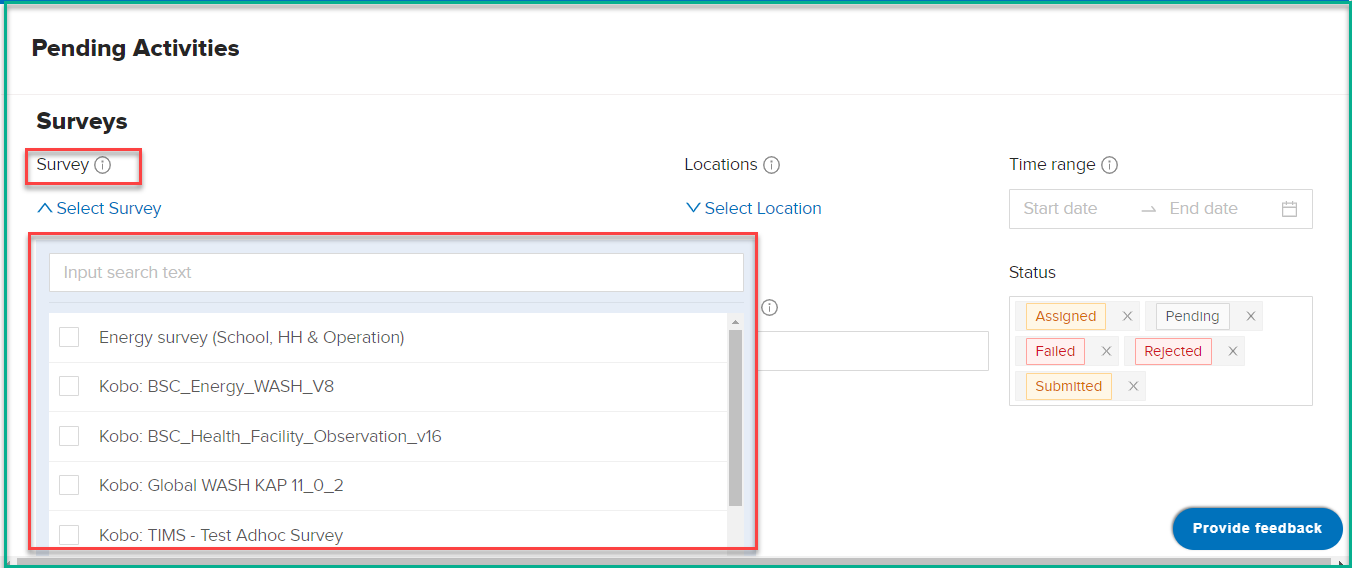
Survey: Use the Survey option to filter surveys by type.
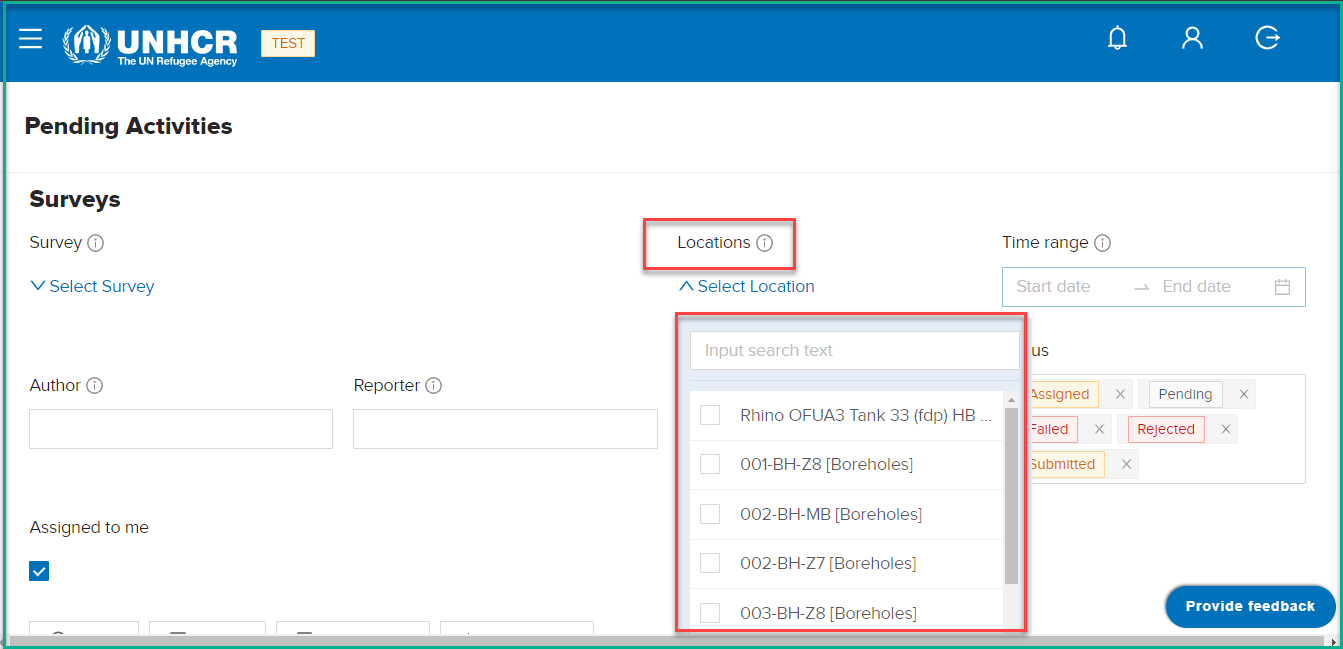
- Locations: Select a specific Location to narrow down activities.
- Time Range: Set a Time Range to filter activities within a specified timeframe.
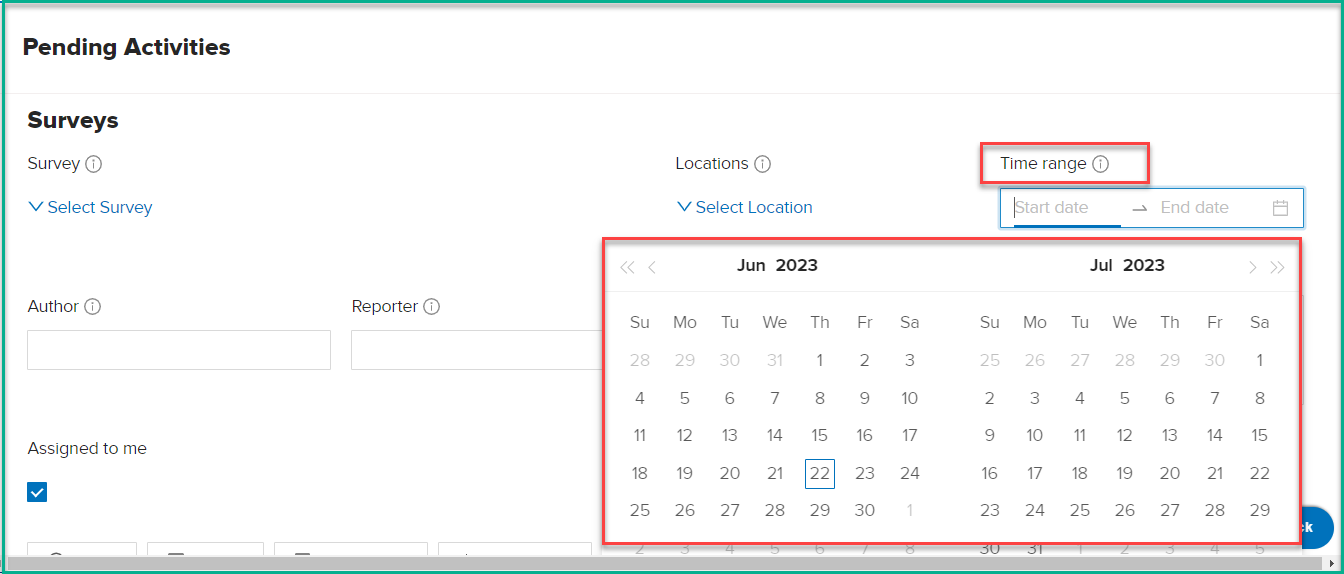
- Author: Filter activities based on the Author (the person who edited the survey data most recently).
-
Reporter: Filter activities based on the Reporter (the person who created the survey).
-
Assignee: Filter activities based on the Assignee (the person or team assigned to the survey).
-
Status: Filter activities based on the Status (e.g., "Pending," "Imported," or "Submitted").
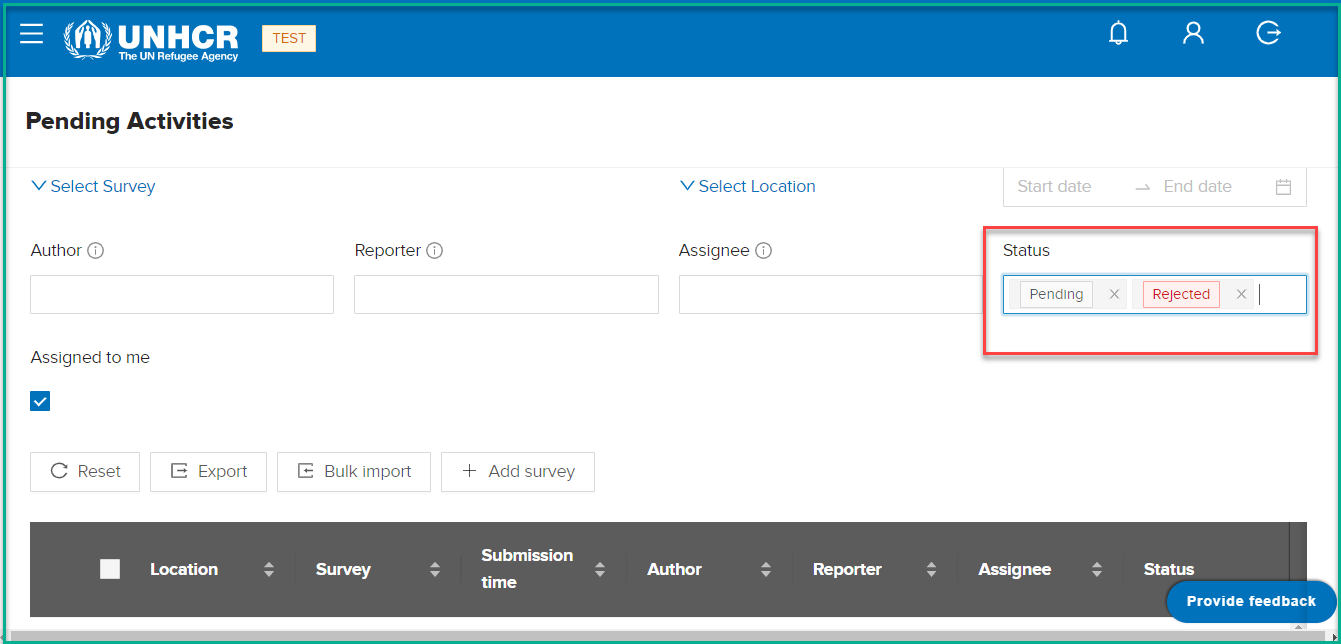
!!! note "Survey Status Overview"
-
Imported : This status indicates that the survey has been successfully imported from an external source into the system.
-
Assigned : This status indicates that a survey has been assigned to a specific user for completion.
-
Pending : This status is assigned to a survey that has not been submitted yet.
-
Failed : This status is given to a survey that encountered an error during the import process
-
Rejected : This status is used when an admin rejects a survey due to errors in the filled data.
-
Accepted : This status is assigned to a survey when the admin fixes the errors and the country admin reviews and verifies that the survey is correct.
-
Duplicate : This status is used when two surveys with the same time, location, and type are imported, indicating a duplication.
By using these filters, you can focus on specific surveys and criteria. You can also sort activities in ascending or descending order based on columns like Location, Survey, Submission Time, Author, Reporter, or Assignee. Click on the column headers to sort the activities.
Adding Survey Data
Before you proceed with adding survey data, please note that the available surveys to add will be based on the login role and the sector assigned to the logged-in user. Users with different roles will have access to specific surveys related to their assigned sector.
Energy (School, HH & Operation) survey
What : Add a Energy (School, HH & Operation) survey data to the system.
Who : Global Admin, Country Admin, Editor (Assigned to Energy Sector).
How :
These steps apply to Global Admins, Country Admins, and Editors with varying access levels.
-
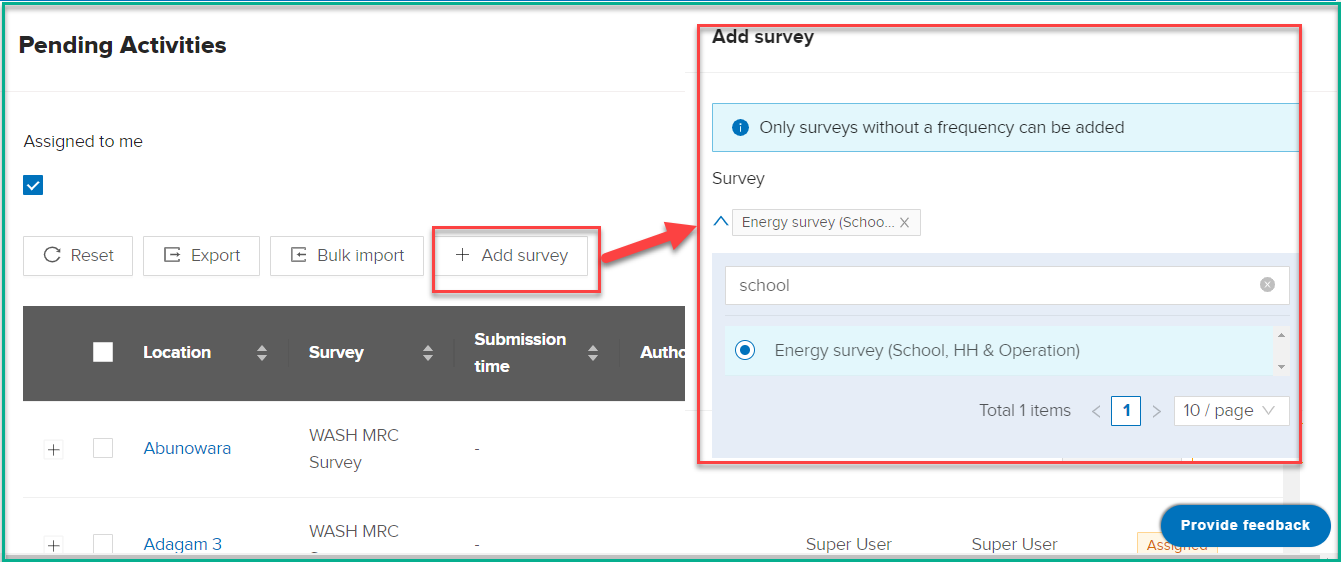
On the "Pending Activities" page, click "Add survey Data".
-
Select "Energy survey (School, HH & Operation)" from the "Survey" drop-down.
-
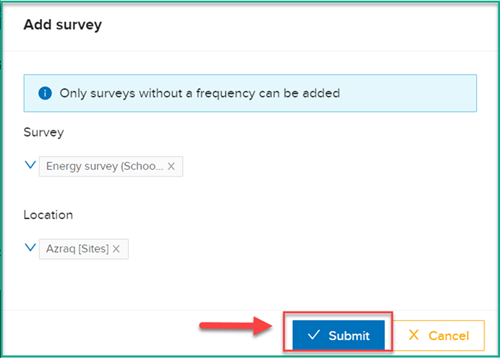
Choose the location and click "Submit".
-
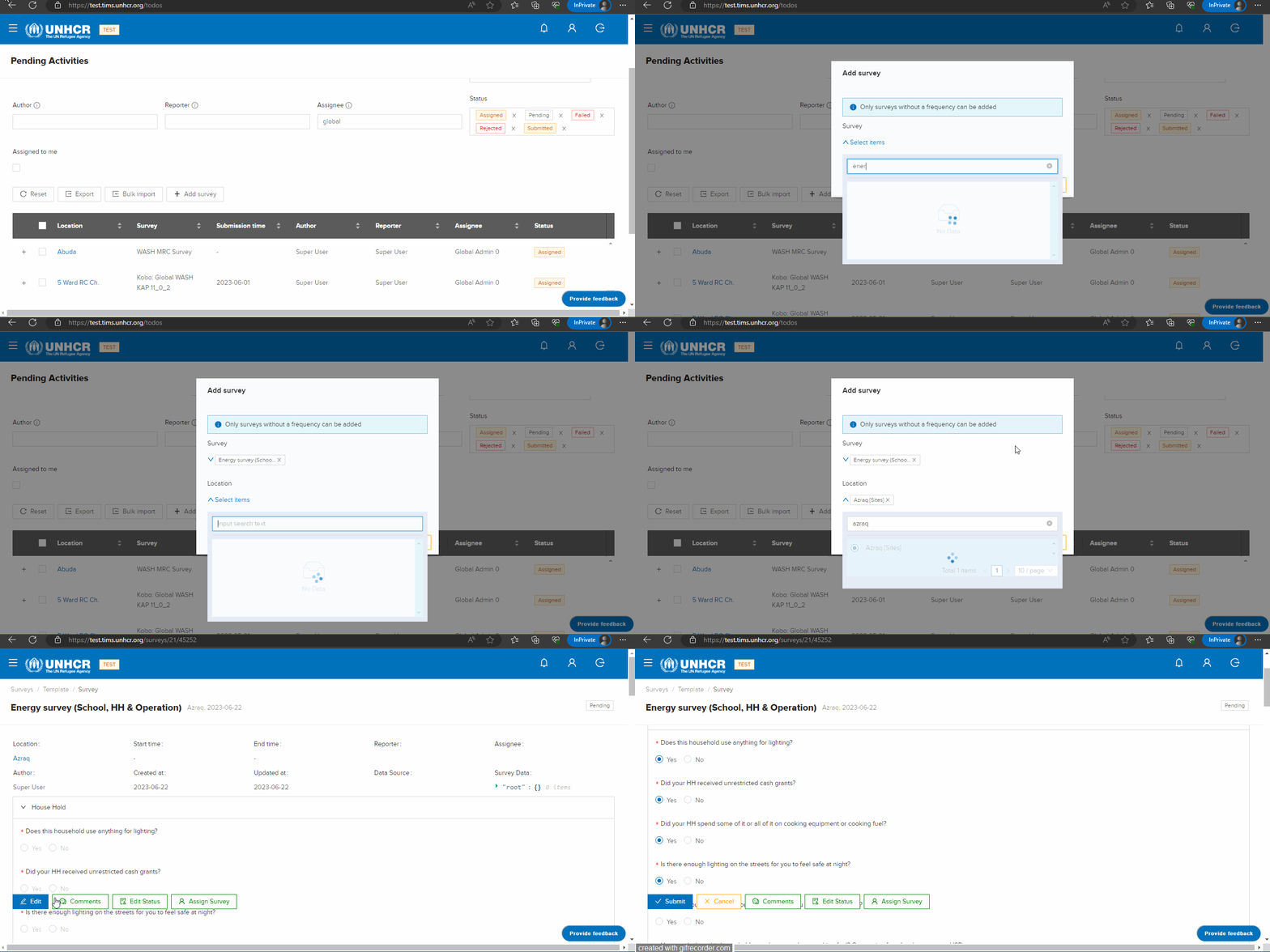
Fill in the survey details in the new form.
-
Click "Submit" to save and submit the survey.
Note: Survey Adding Privileges
- For Global Admins: You have the authority to add surveys to all sites within the system..
- For Country Admins: You are granted the ability to add surveys specifically to sites within your designated country.
- For Editors: Your survey adding capabilities are limited to the sites that have been assigned to you.
WASH KAP Survey
What : Add a Wash KAP survey data to the system.
Who : Global Admin, Country Admin, Editor (Assigned to Wash Sector).
How :
These steps apply to Global Admins, Country Admins, and Editors with varying access levels.
-
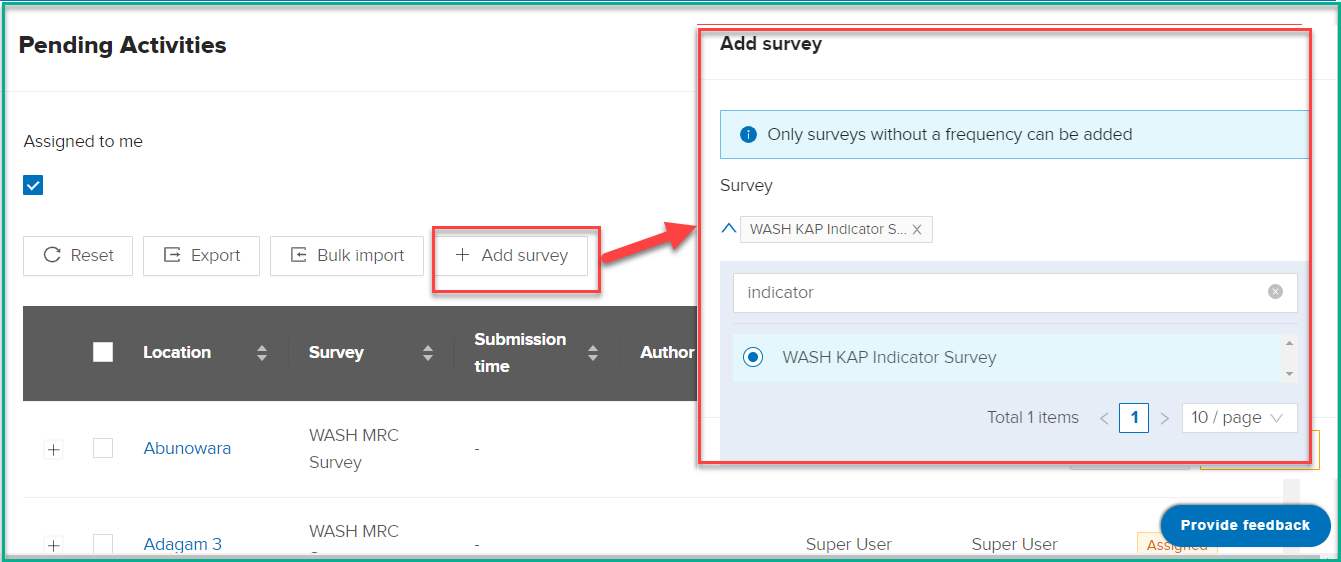
On the "Pending Activities" page, click "Add survey Data".
-
Select "WASH KAP Survey (Indicators Value)" from the "Survey" drop-down.
-
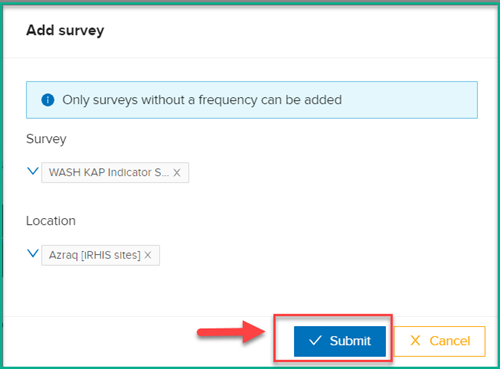
Choose the location and click "Submit".
-
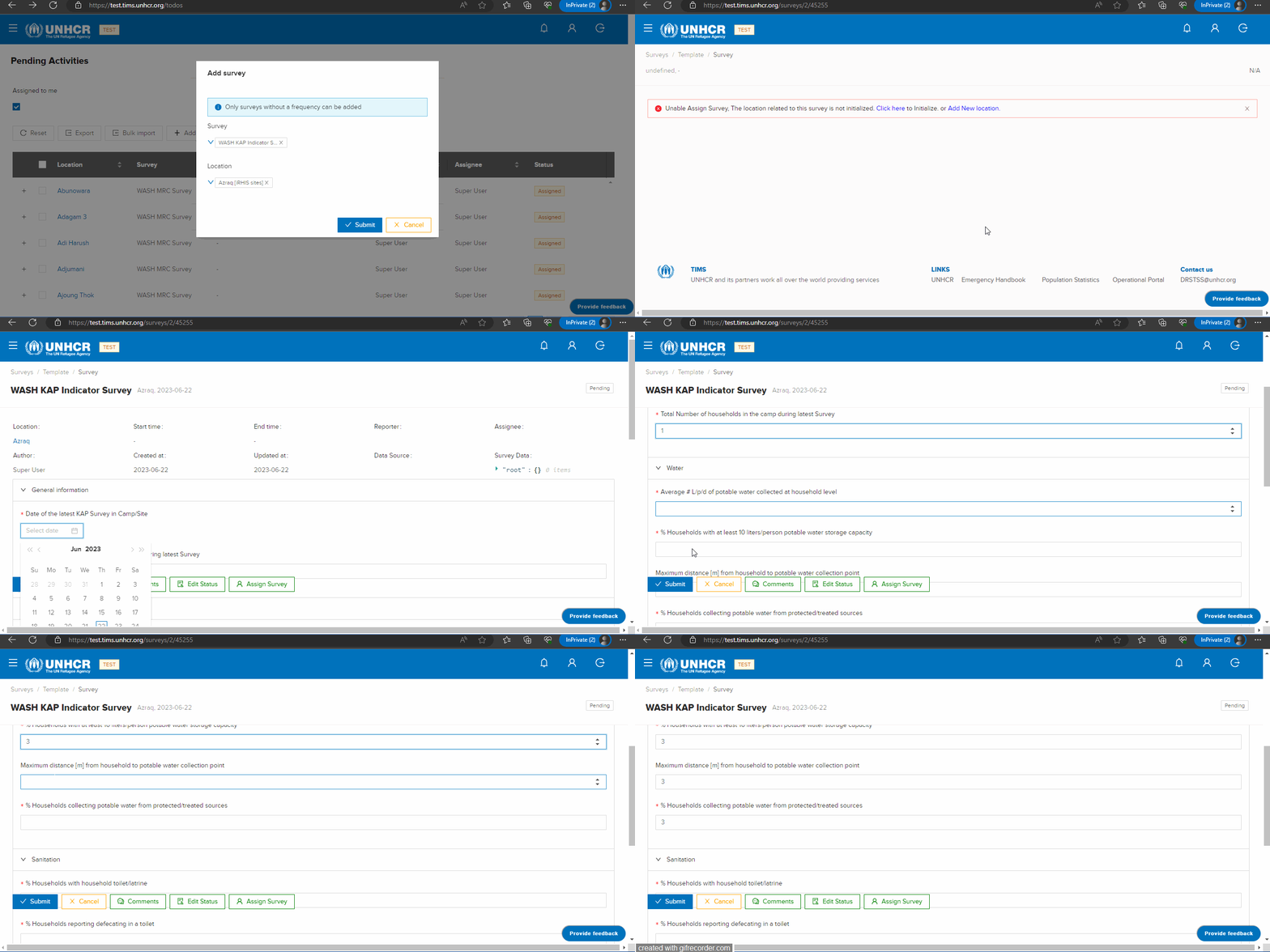
Fill in the survey details in the new form.
-
Click "Submit" to save and submit the survey.
Note: Survey Adding Privileges
- For Global Admins: You have the authority to add surveys to all sites within the system.
- For Country Admins: You are granted the ability to add surveys specifically to sites within your designated country.
- For Editors: Your survey adding capabilities are limited to the sites that have been assigned to you.
Shelter Survey
What : Add a Shelter survey data to the system.
Who : Global Admin, Country Admin, Editor (Assigned to Shelter Sector).
How :
These steps apply to Global Admins, Country Admins, and Editors with varying access levels.
-
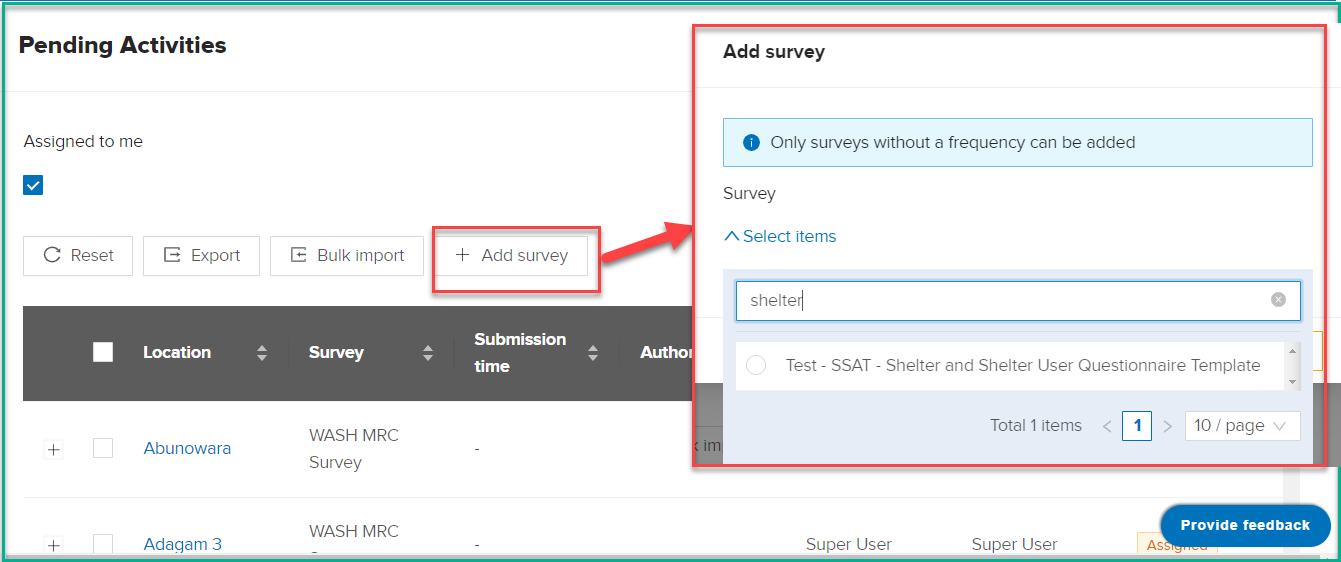
On the "Pending Activities" page, click "Add survey Data".
-
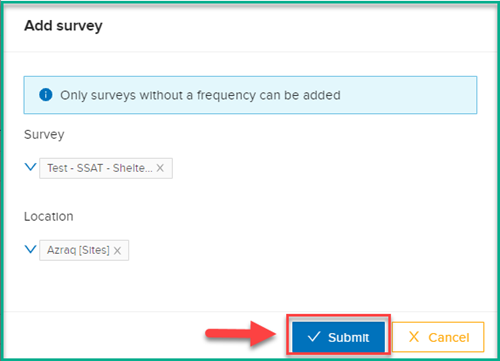
Select "Test - SSAT - Shelter and Shelter User Questionnaire Template" from the "Survey" drop-down.
-
Choose the location and click "Submit".
-
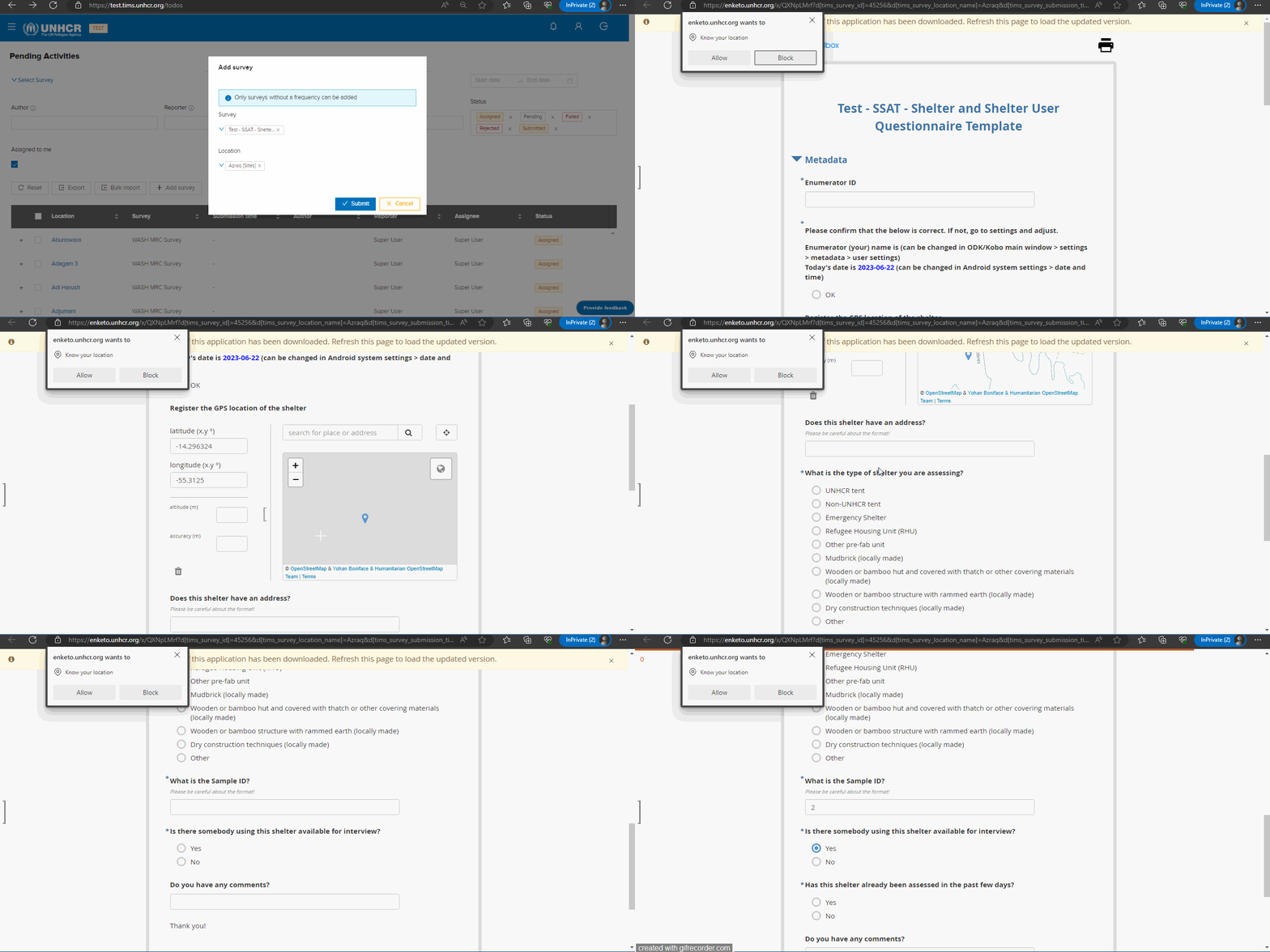
Fill in the survey details in the new form.
-
Click "Submit" to save and submit the survey.
-
After submitting the survey, the data will be added to Kobo (please check below image from Kobo site).
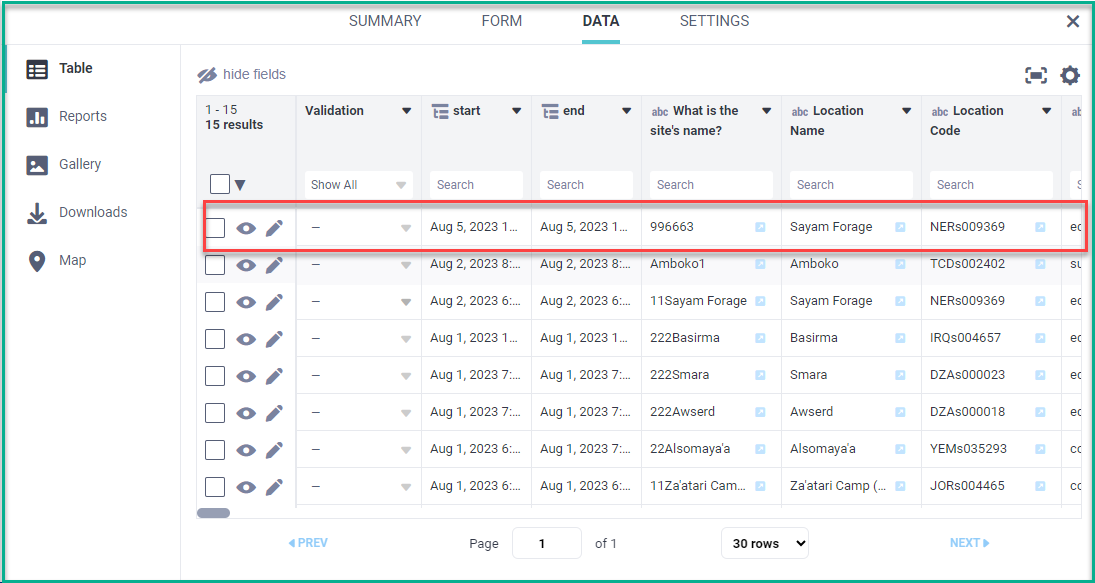
However, you will only be able to view the survey data on TIMS using export function after the synchronization process is completed, which occurs every midnight.
Note: Survey Adding Privileges
-
For Global Admins: You have the authority to add surveys to all sites within the system..
-
For Country Admins: You are granted the ability to add surveys specifically to sites within your designated country.
-
For Editors: Your survey adding capabilities are limited to the sites that have been assigned to you.
Settlement Survey
What : Add a Settlement survey data to the system.
Who : Global Admin, Country Admin, Editor (Assigned to Settlement Sector).
How :
These steps apply to Global Admins, Country Admins, and Editors with varying access levels.
-
On the "Pending Activities" page, click "Add survey Data".
-
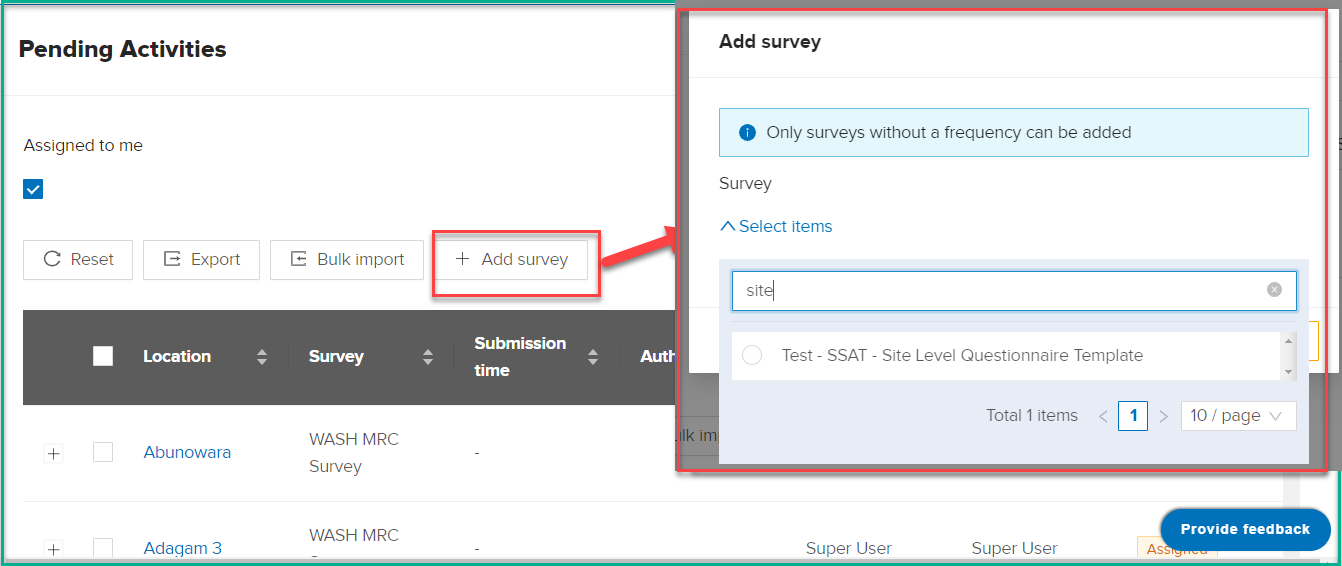
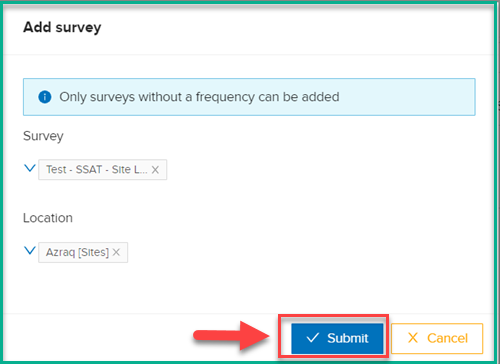
Select "Test - SSAT - Site Level Questionnaire Template" from the "Survey" drop-down.
-
Choose the location and click "Submit".
-
Fill in the survey details in the new form.
-
Click "Submit" to save and submit the survey .
-
After submitting the survey, the data will be added to Kobo (please check below image from Kobo site).
However, you will only be able to view the survey data on TIMS using export function after the synchronization process is completed, which occurs every midnight.
Note: Survey Adding Privileges
- For Global Admins: You have the authority to add surveys to all sites within the system.
- For Country Admins: You are granted the ability to add surveys specifically to sites within your designated country.
- For Editors: Your survey adding capabilities are limited to the sites that have been assigned to you.
Energy & WASH Survey in Schools
What : Add a Energy & WASH Survey in Schools survey to the system.
Who : Global Admin, Country Admin, Editor (Assigned to Energy Sector).
How :
These steps apply to Global Admins, Country Admins, and Editors with varying access levels.
-
On the "Pending Activities" page, click "Add survey Data".
-
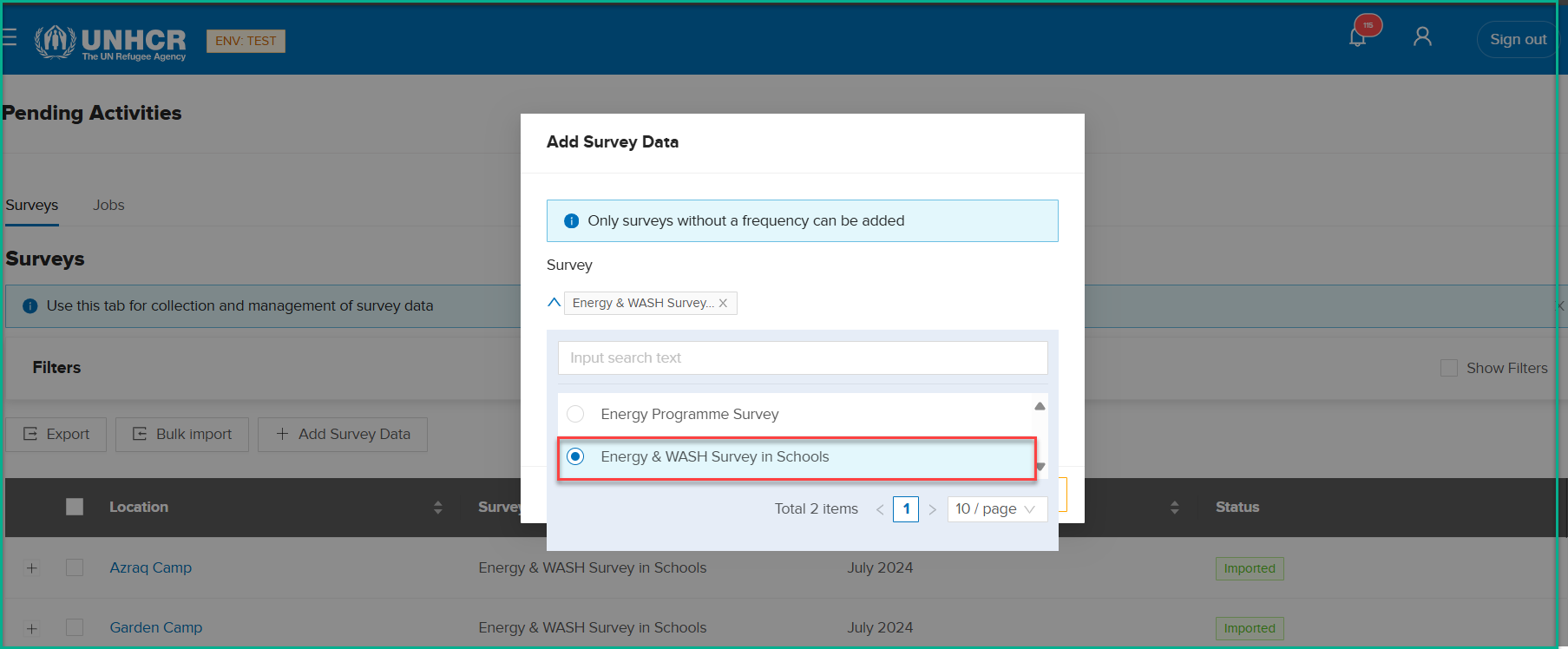
Select "Energy & WASH Survey in Schools" from the "Survey" drop-down.
-
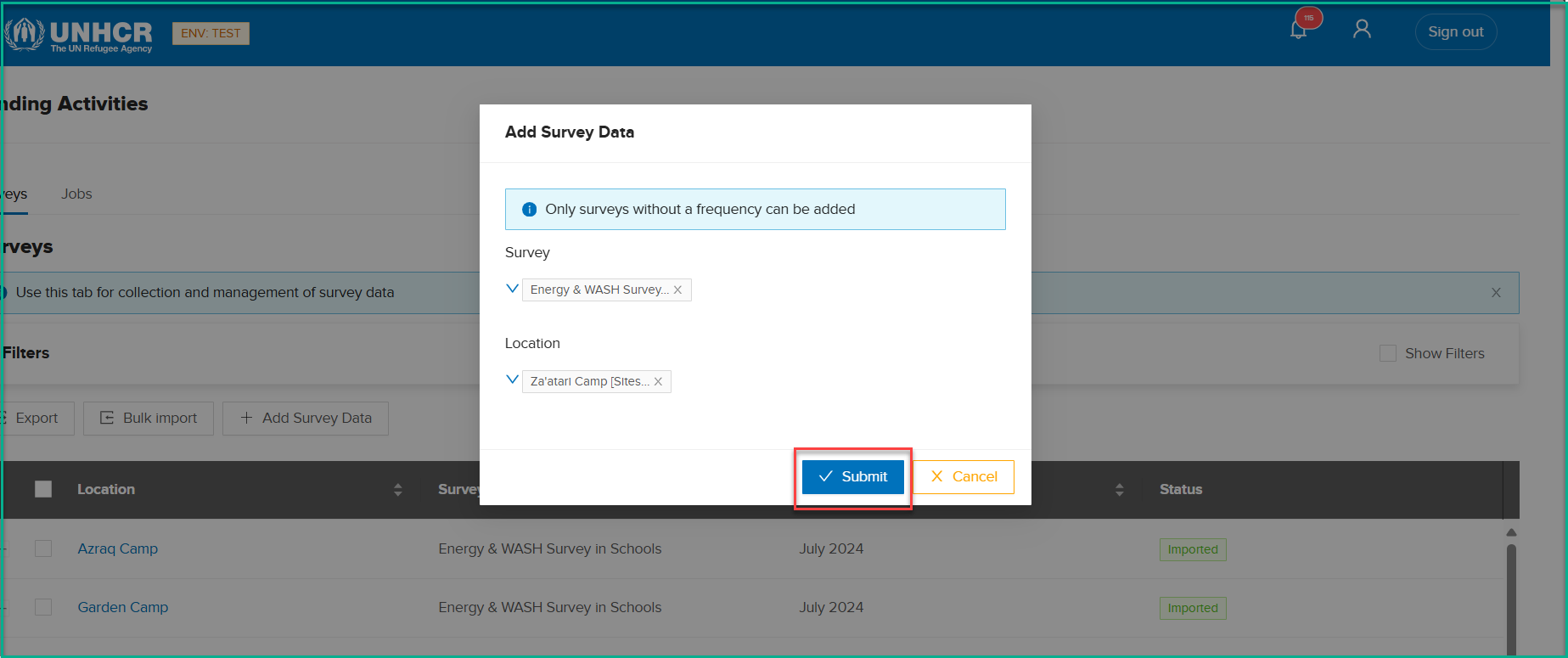
Choose the location and click "Submit".
-
Fill in the survey details in the new form.
-
Click "Submit" to save and submit the survey .
-
After submitting the survey, the data will be added to Kobo (please check below image from Kobo site).
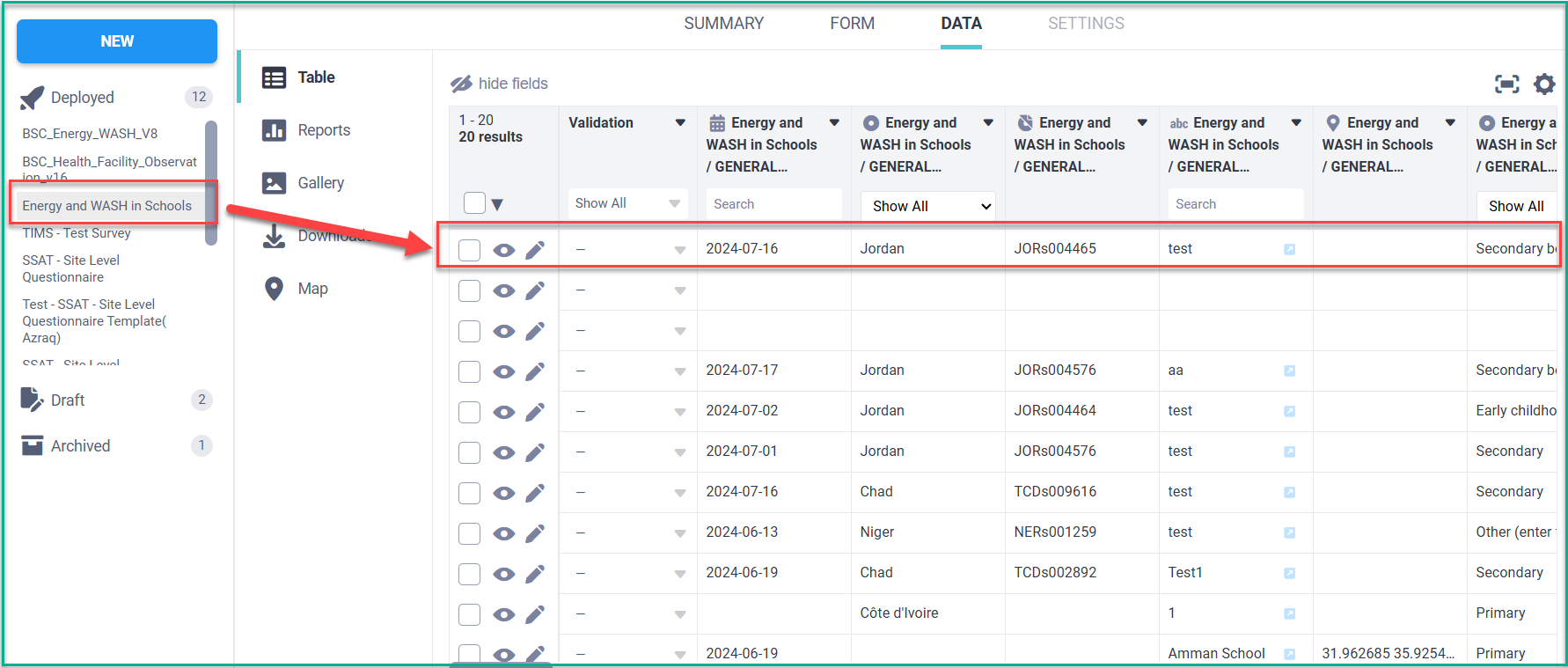
However, you will only be able to view the survey data on TIMS using export function after the synchronization process is completed, which occurs every midnight.
WASH Monthly Report Card (MRC)
What : Fill WASH Monthly Report Card (MRC) form data.
Who : Global Admin, Country Admin, Editor (Assigned to Wash Sector).
How :
These steps apply to Global Admins, Country Admins, and Editors with varying access levels.
-
Go to the "Pending Activities" page.
-
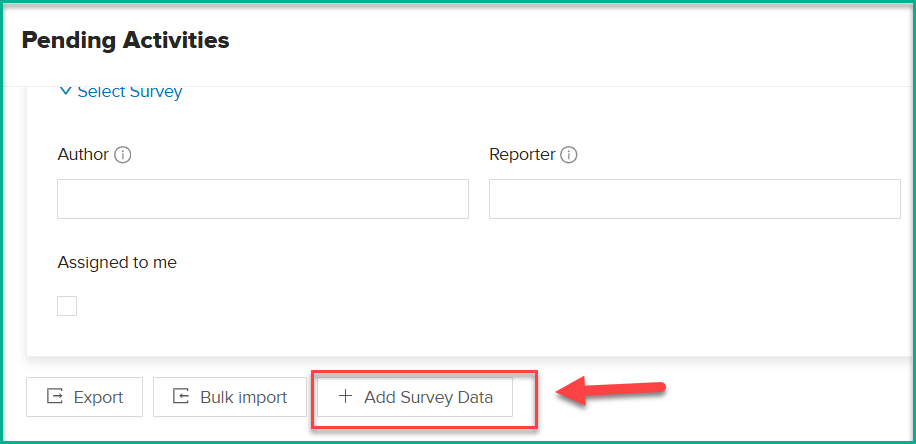
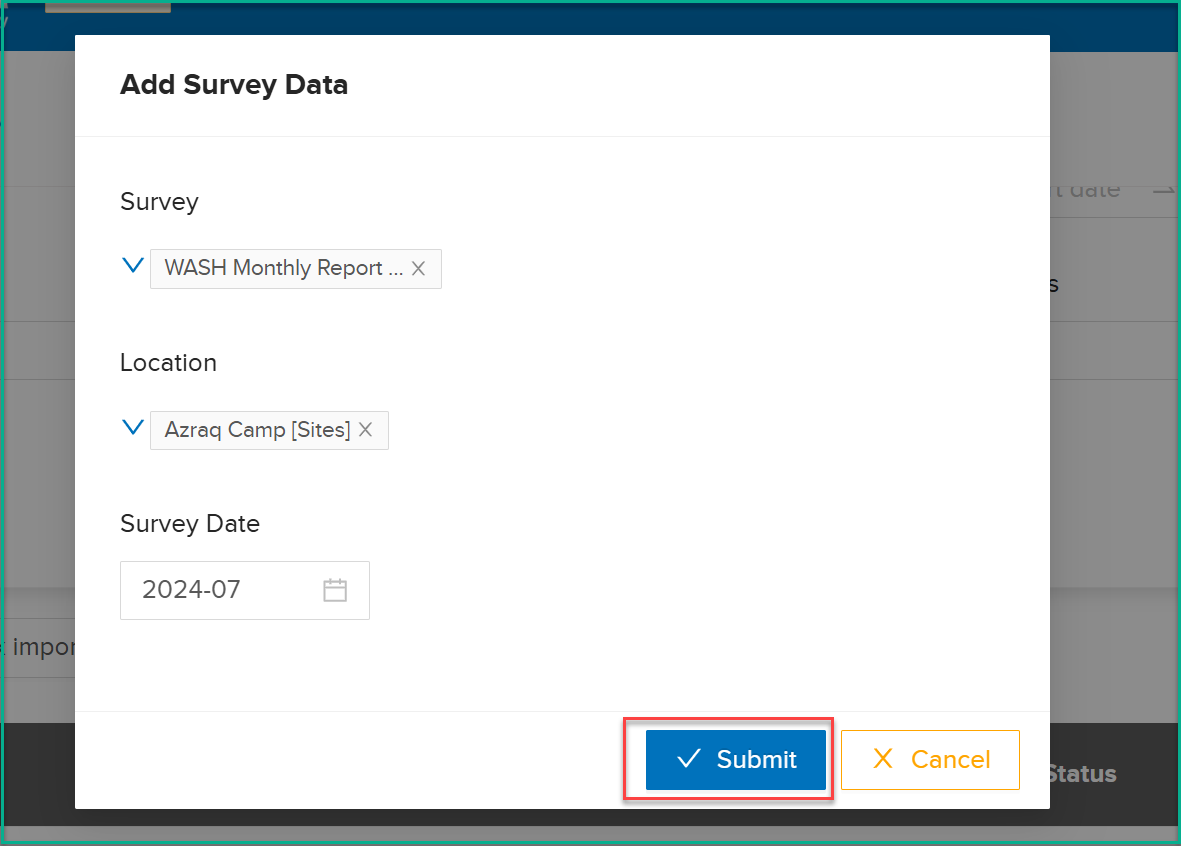
Click on Add Survey Data.
-
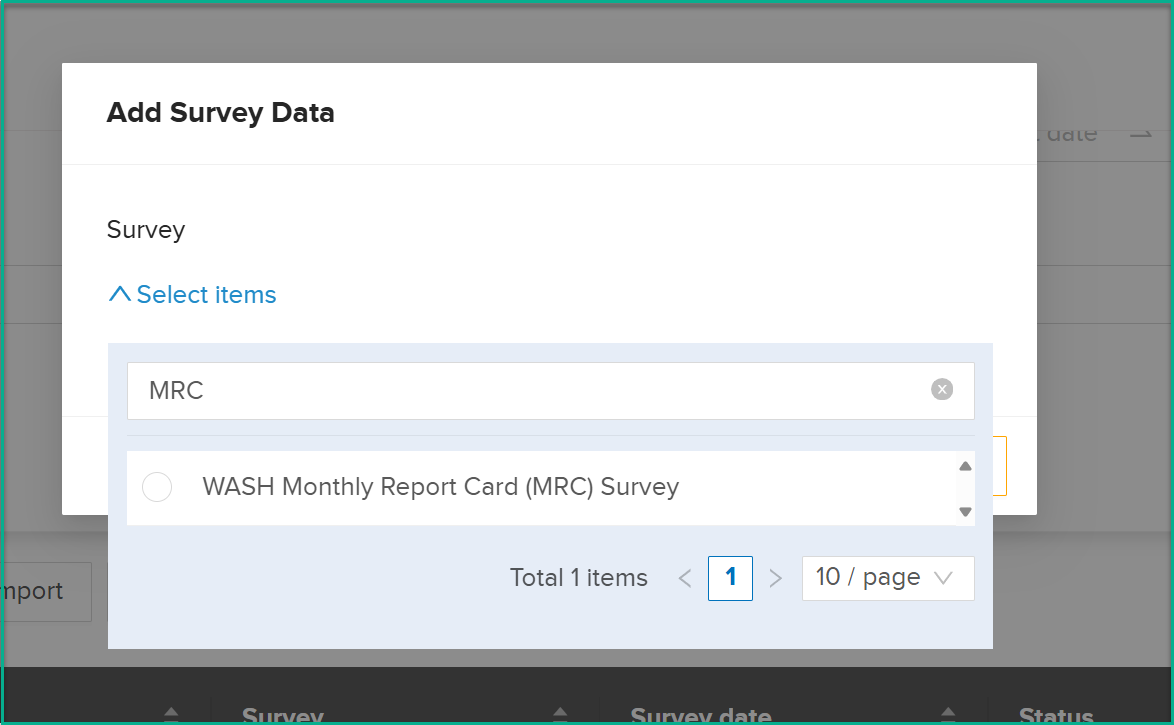
From the Survey dropdown, select WASH Monthly Report Card (MRC) Survey.
-
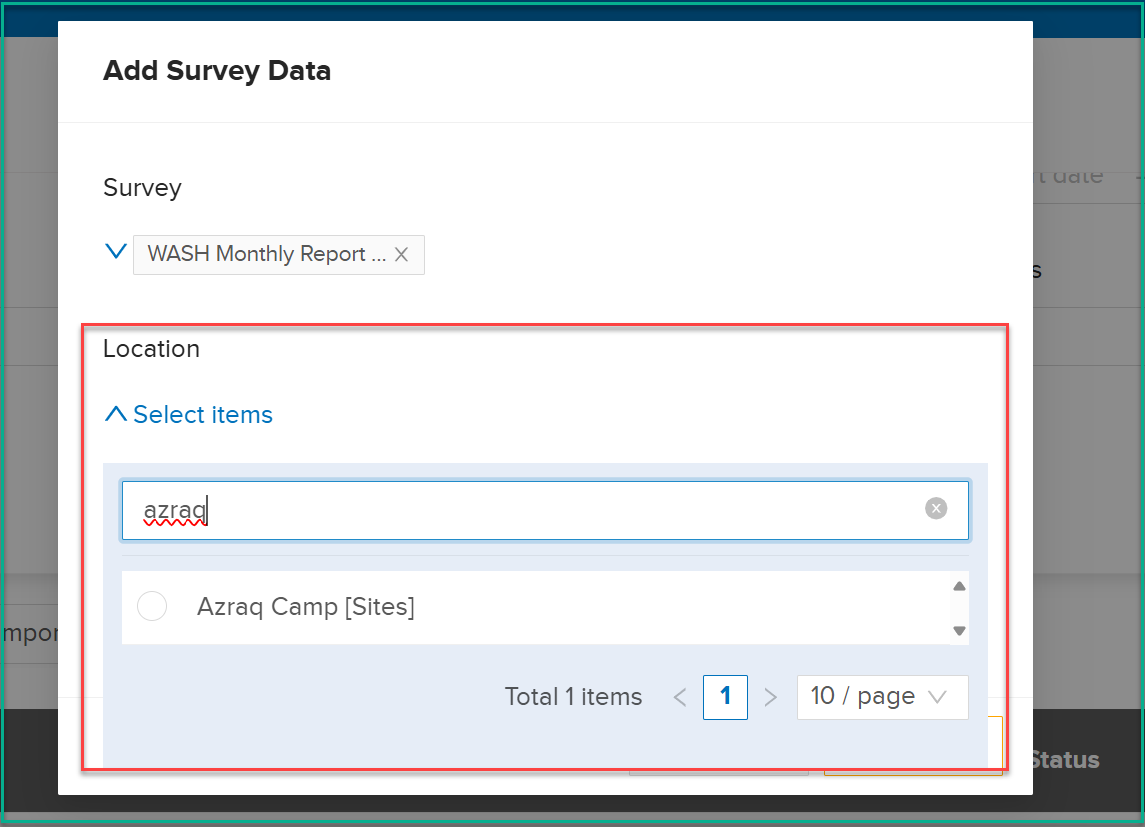
From the Location list, select a valid location.
-
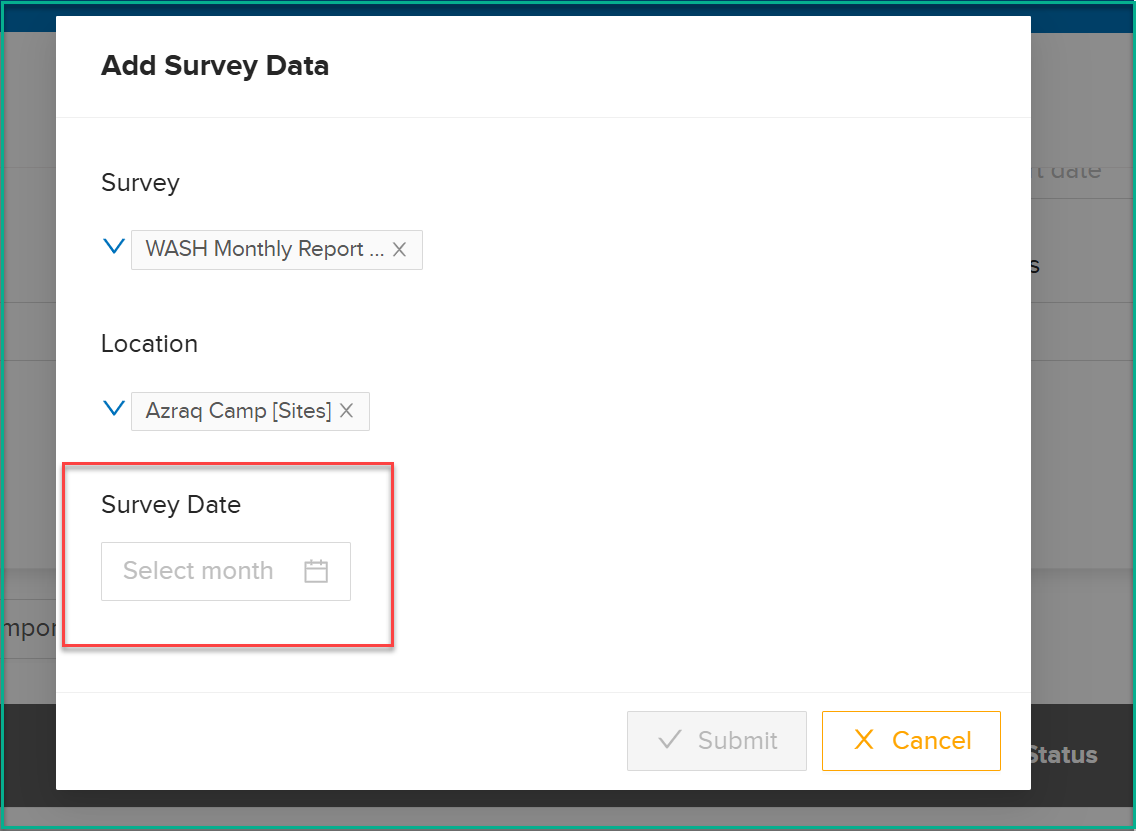
Select a Date from the date picker.
-
Click the Submit button.
-
The system will open the MRC form.
-
Fill in the survey details in the new form.
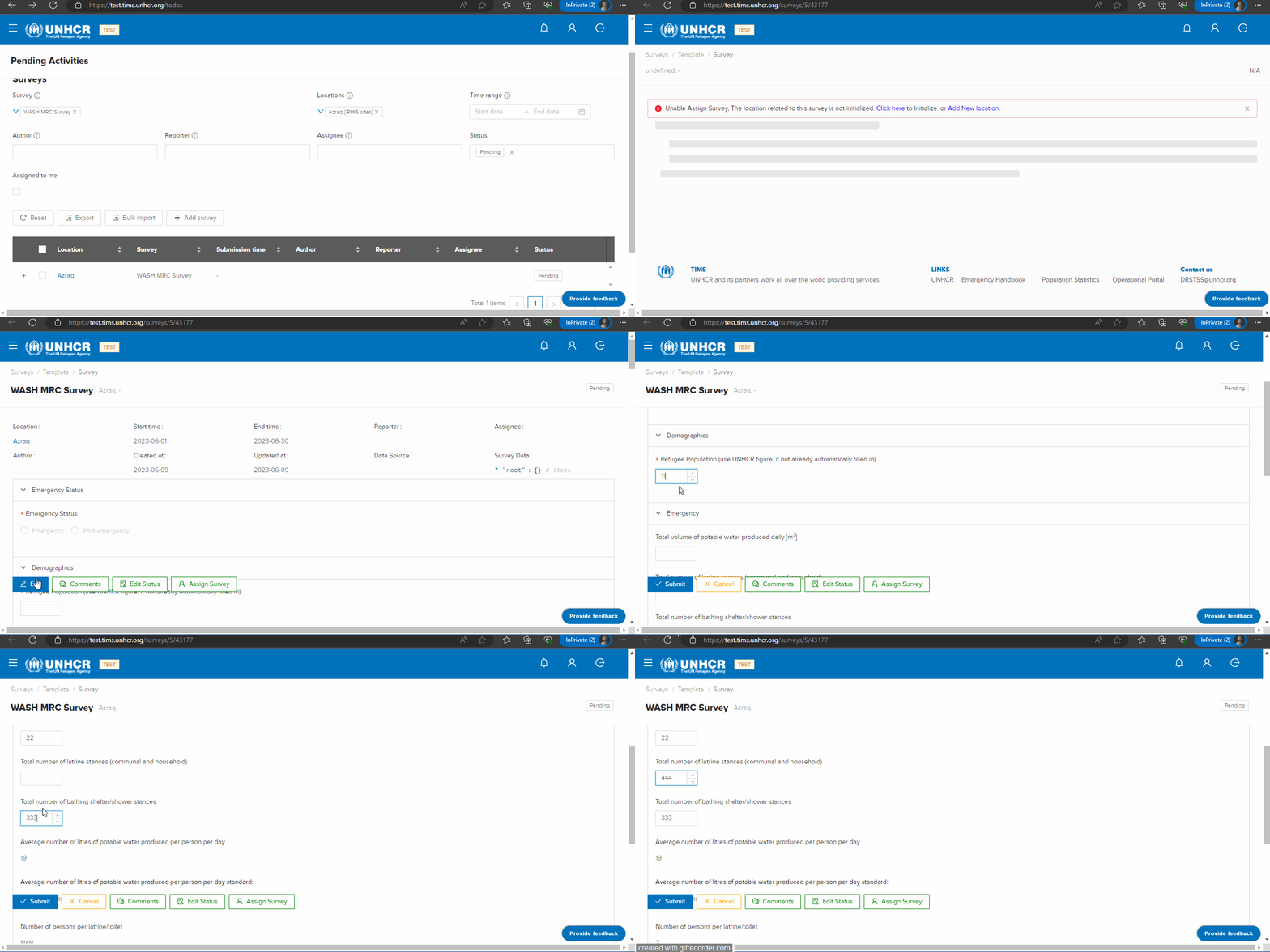
Fig.1 - Fill Monthly Report Card (MRC) survey. -
Click "Submit" to save and submit the survey.
Note: Survey Adding Privileges
- For Global Admins: You have the authority to add surveys to all sites within the system.
- For Country Admins: You are granted the ability to add surveys specifically to sites within your designated country.
- For Editors: Your survey adding capabilities are limited to the sites that have been assigned to you.
Editing Survey Data
Energy (School, HH & Operation) Survey
What : Edit Energy (School, HH & Operation) Survey data .
Who : Global Admin, Country Admin, Editor (Assigned to Energy Sector).
How :
These steps apply to Global Admins, Country Admins, and Editors with varying access levels.
-
Go to the "Pending Activities" page.
-
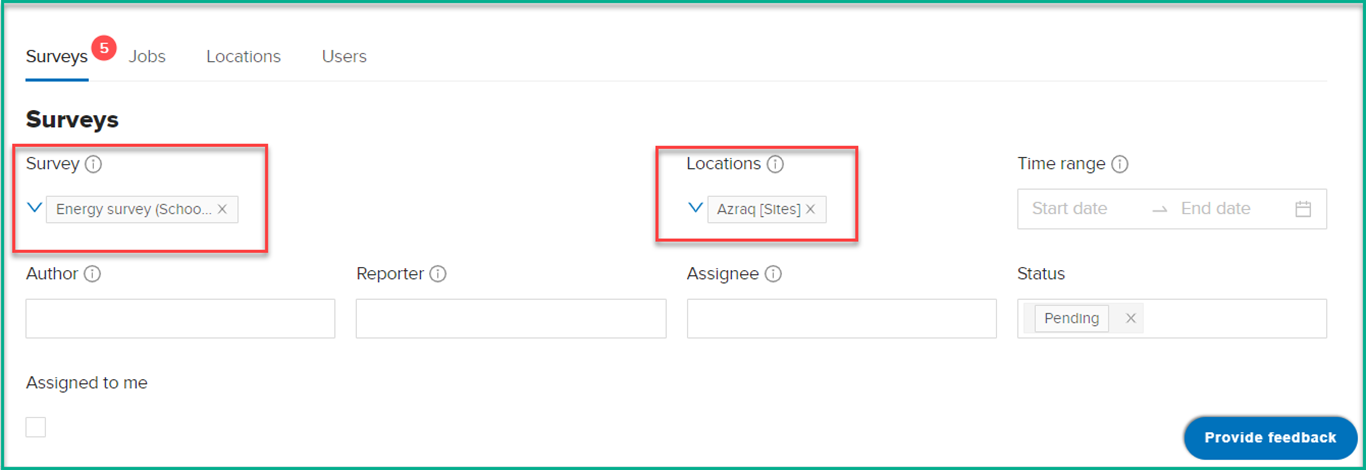
Use the filters to narrow down the surveys list. Select 'Energy (School, HH & Operation)' from the 'Survey' filter.
-
From the filtered survey list, locate the desired location from the location list.
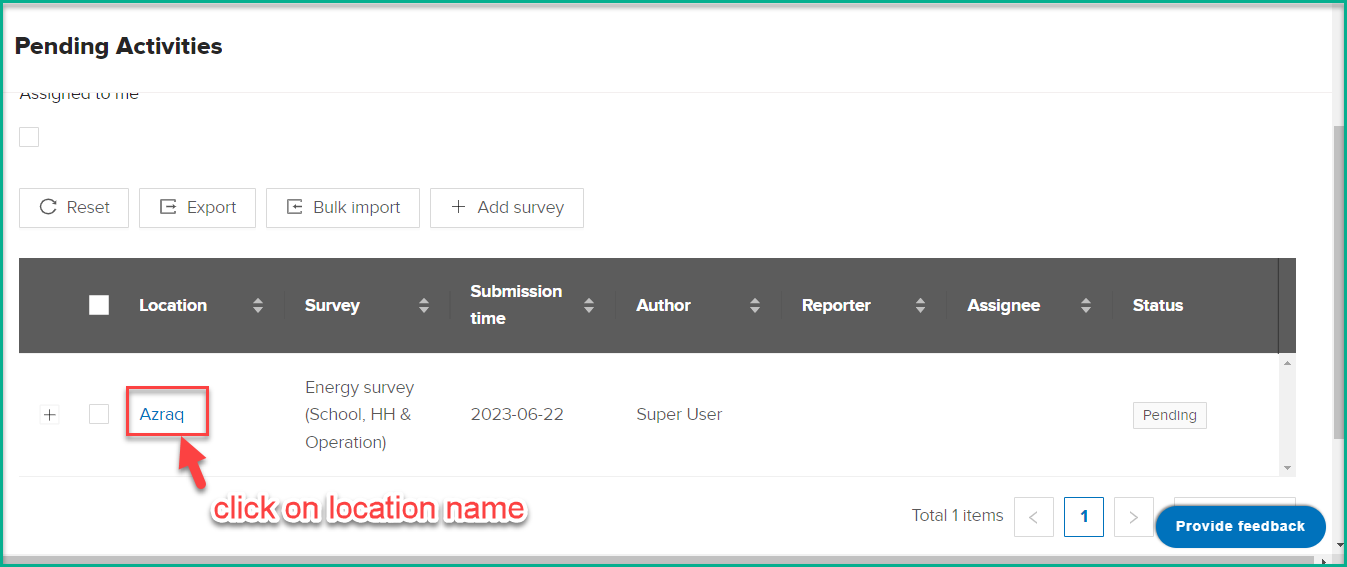
- Click on the name of the location in the data table. This will open the filled Survey data.
-
Within the Survey data, click on the 'Edit' button.
-
Make the necessary changes to the survey data.
-
Once you have completed editing the survey, click on the 'Submit' button or any equivalent button within the form to save the changes.
WASH KAP Survey
What : Edit WASH KAP Survey data .
Who : Global Admin, Country Admin, Editor (Assigned to Wash Sector).
How :
These steps apply to Global Admins, Country Admins, and Editors with varying access levels.
-
Go to the "Pending Activities" page.
-
Use the filters to narrow down the surveys list. Select 'WASH KAP Survey' from the 'Survey' filter.
-
From the filtered survey list, locate the desired location from the location list.
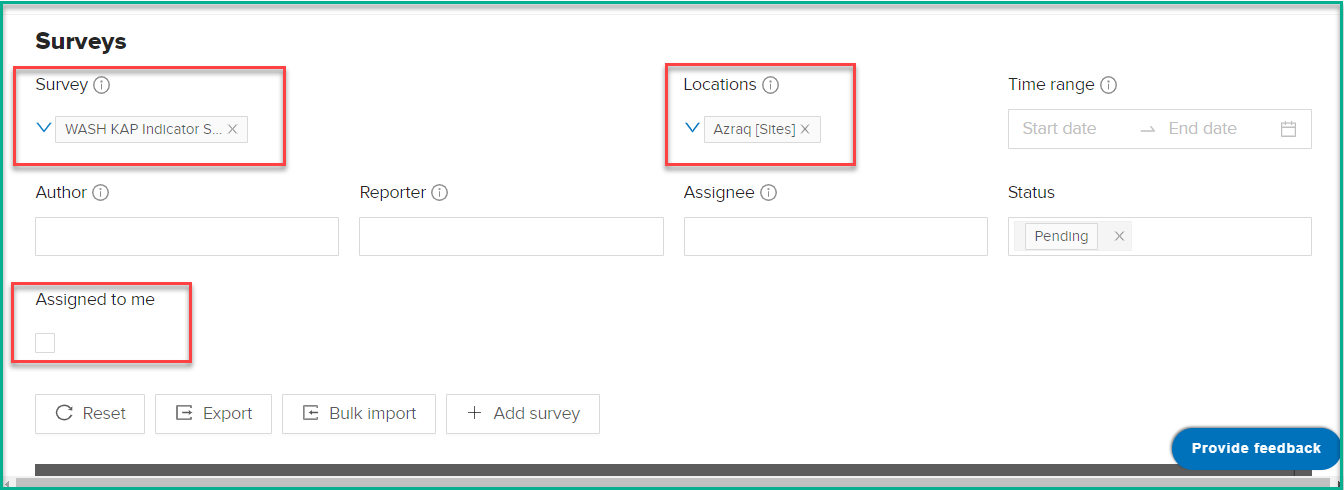
- Click on the name of the location in the data table. This will open the filled Survey data.
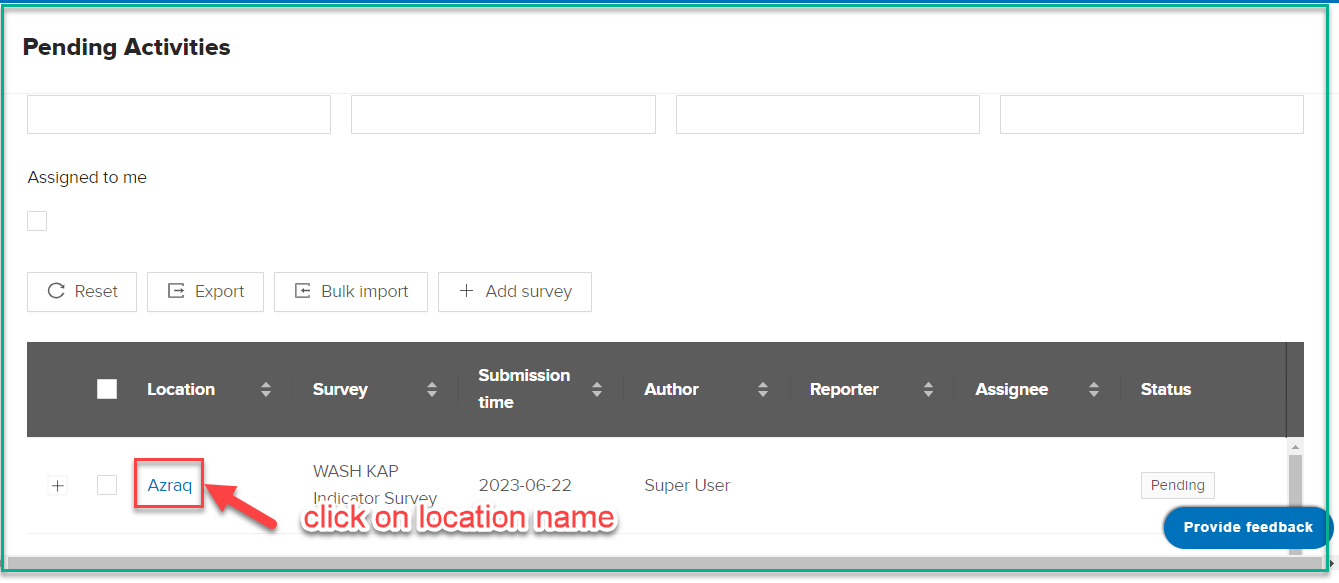
-
Within the Survey data, click on the 'Edit' button.
-
Make the necessary changes to the survey data.
-
Once you have completed editing the survey, click on the 'Submit' button or any equivalent button within the form to save the changes.
WASH Monthly Report Card (MRC)
What : Edit Monthly Report Card (MRC) Survey data .
Who : Global Admin, Country Admin, Editor (Assigned to Wash Sector)..
How :
These steps apply to Global Admins, Country Admins, and Editors with varying access levels.
-
Go to the "Pending Activities" page.
-
Use the filters to narrow down the surveys list. Select 'WASH Monthly Report Card (MRC) Survey' from the 'Survey' filter.
-
From the filtered survey list, locate the desired location from the location list.
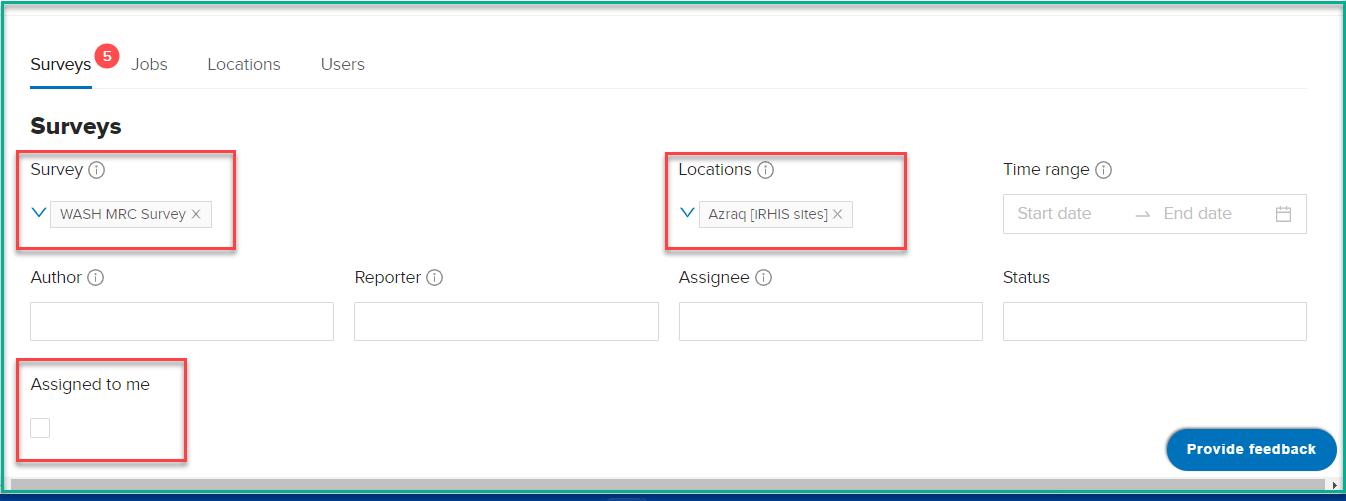
- Click on the name of the location in the data table. This will open the filled Survey data.
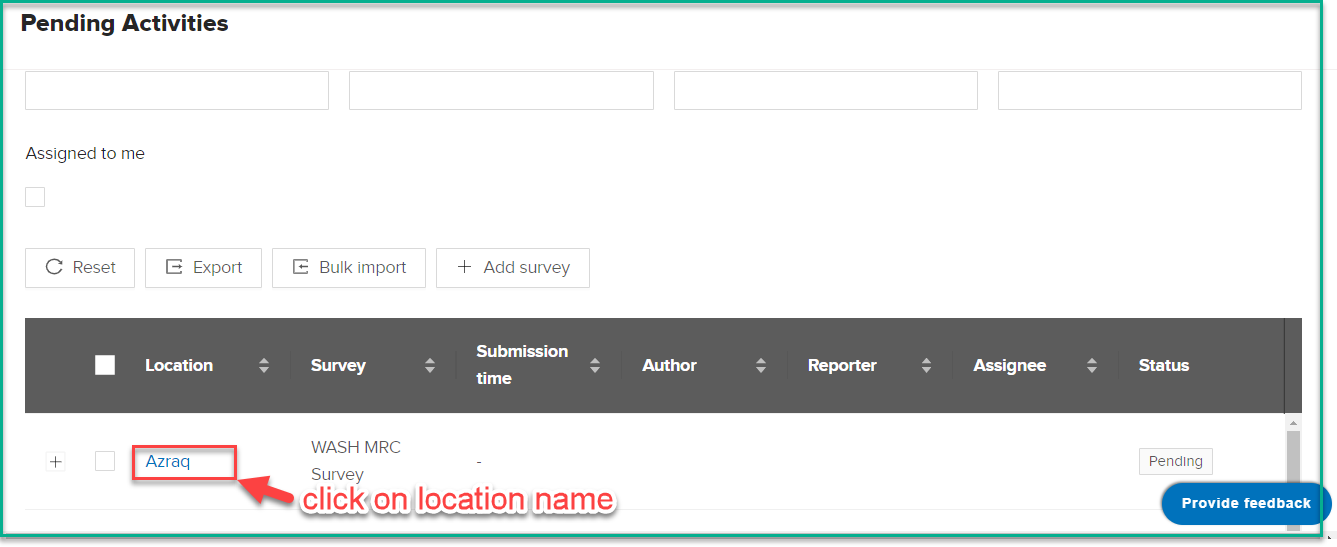
-
Within the Survey data, click on the 'Edit' button.
-
Make the necessary changes to the survey data.
-
Once you have completed editing the survey, click on the 'Submit' button or any equivalent button within the form to save the changes.
Shelter Survey Data
What : Edit Shelter Survey data .
Who : Global Admin, Country Admin, Editor (Assigned to Shelter Sector).
How :
-
Go to https://kobo.unhcr.org/accounts/login/
-
Enter your username and password to log in.
-
Open the "Shelter Survey."
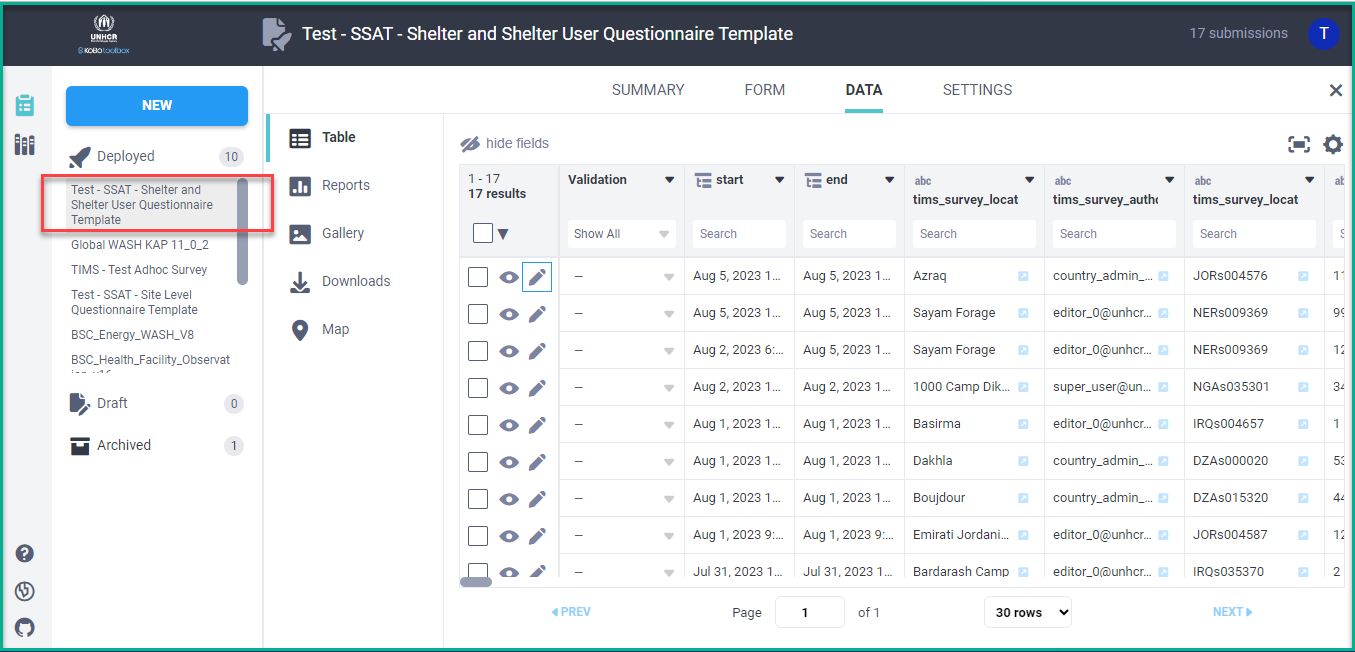
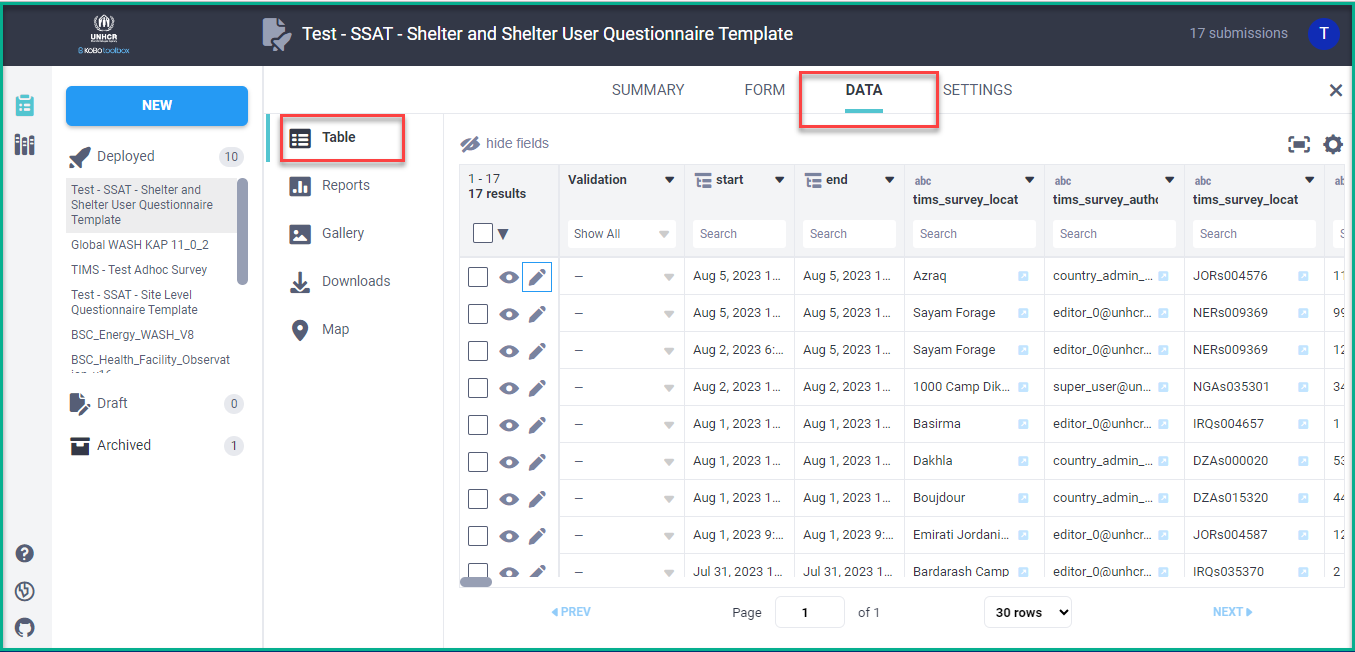
- Access the "Data" tab to view survey submissions.
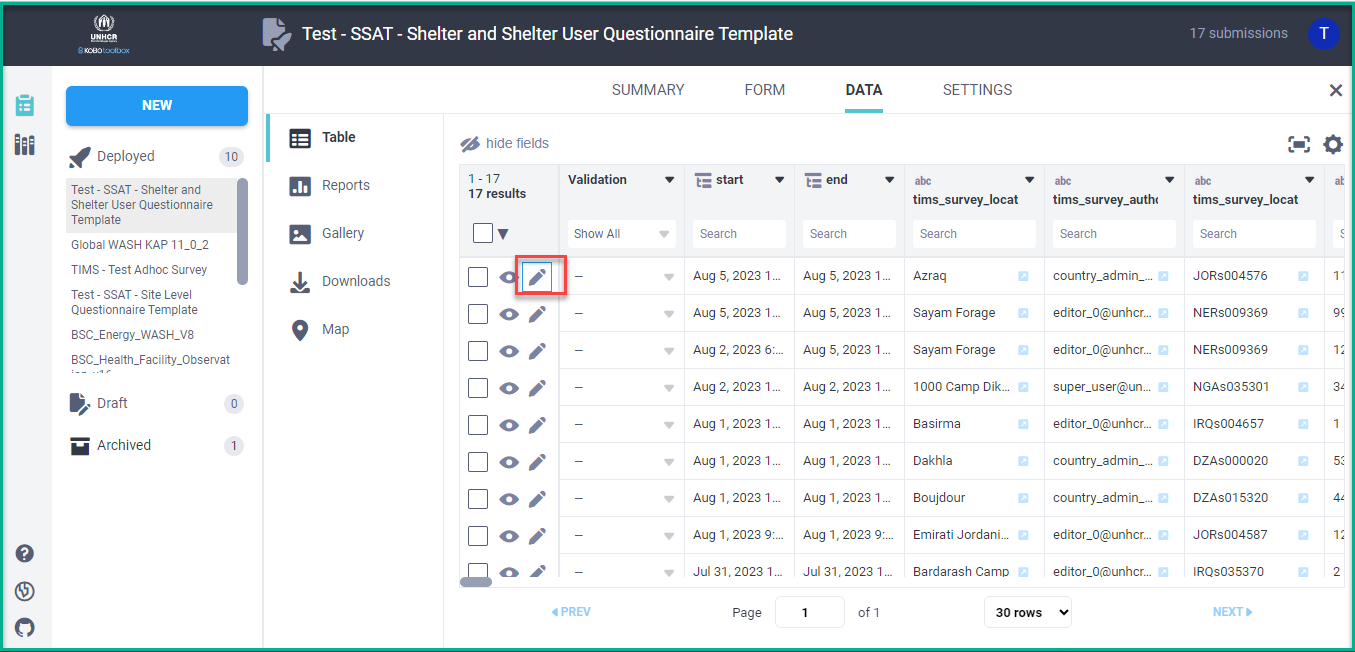
- Click "Edit" for the desired submission.
-
Make necessary changes in the survey form.
-
Click "Submit" to save the edits.
Changes will be reflected after the synchronization, which occurs every midnight.
Settlement Survey Data
What : Edit Settlement Survey data .
Who : Global Admin, Country Admin, Editor (Assigned to Settlement Sector).
How :
-
Go to https://kobo.unhcr.org/accounts/login/
-
Enter your username and password to log in.
-
Open the "Settlement Survey."
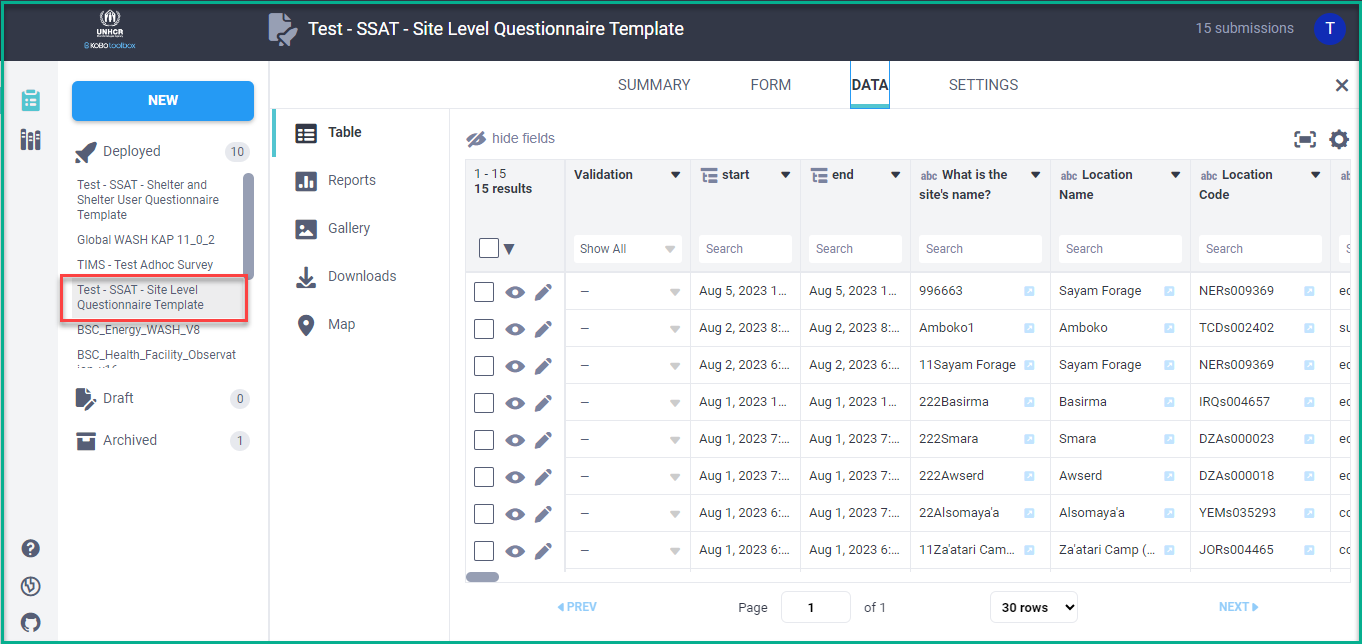
- Access the "Data" tab to view survey submissions.
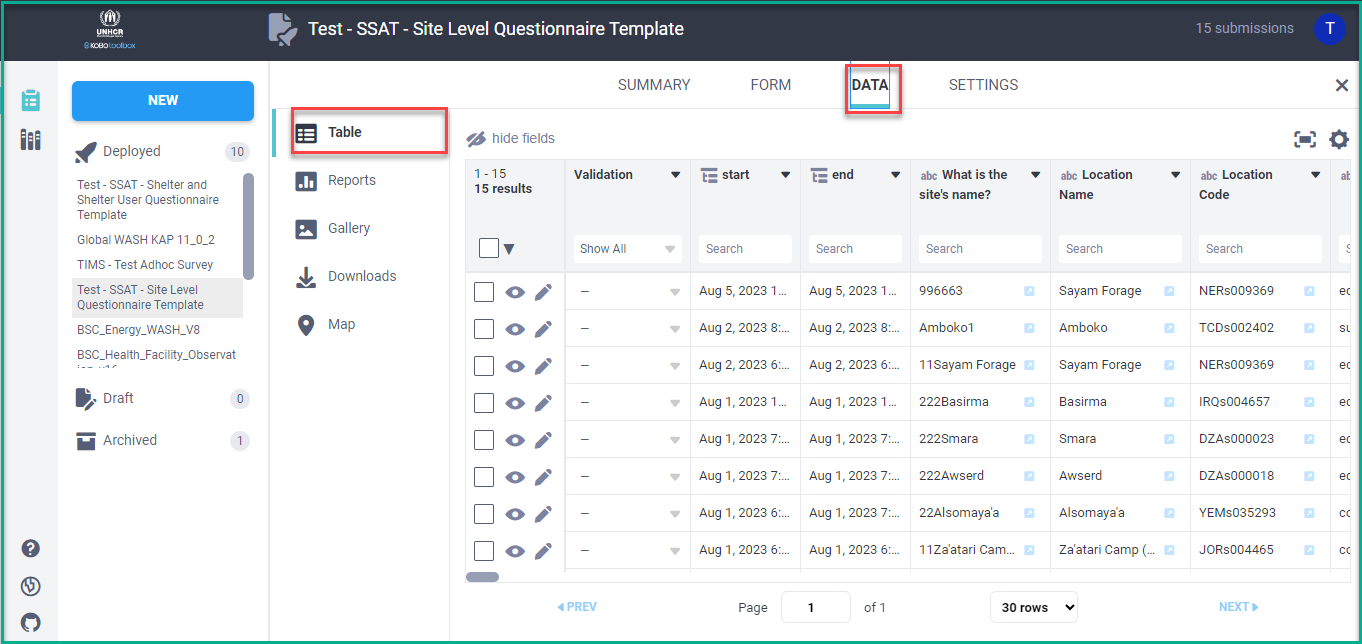
- Click "Edit" for the desired submission.
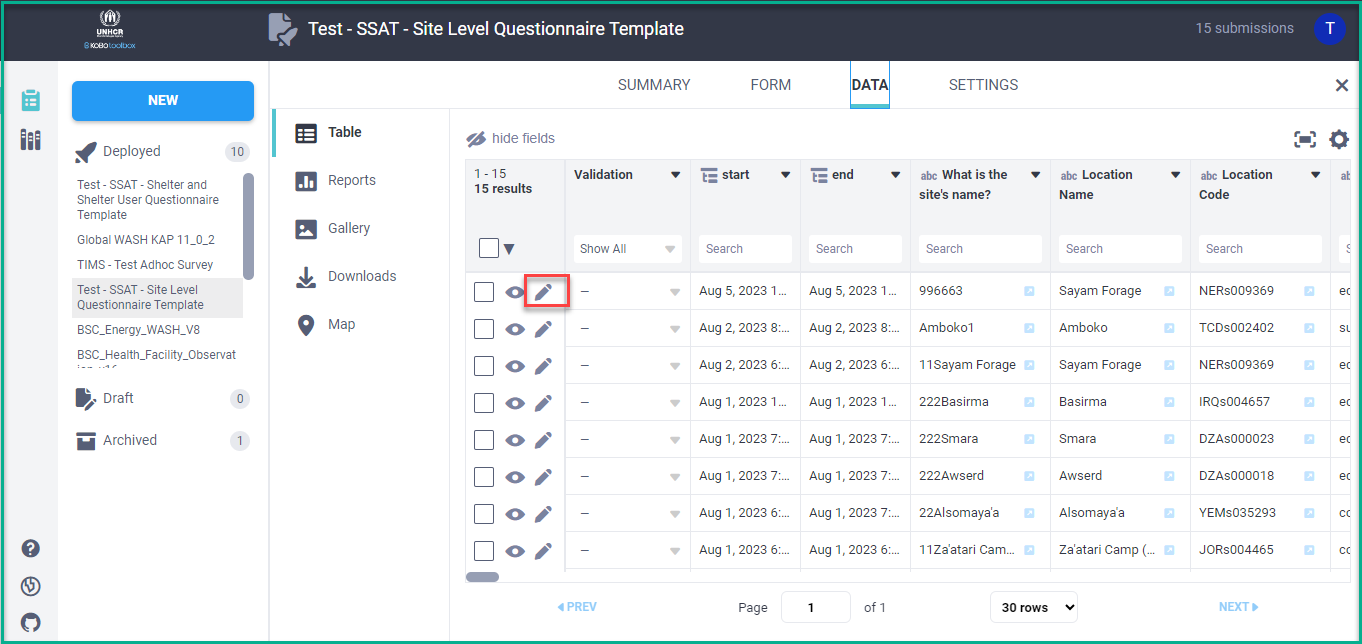
-
Make necessary changes in the survey form.
-
Click "Submit" to save the edits.
Changes will be reflected after the synchronization, which occurs every midnight.
Exporting TIMS Survey Data
This feature allows users to export survey data in xls format from the Surveys page.
- Choose Survey Template from surveys template list
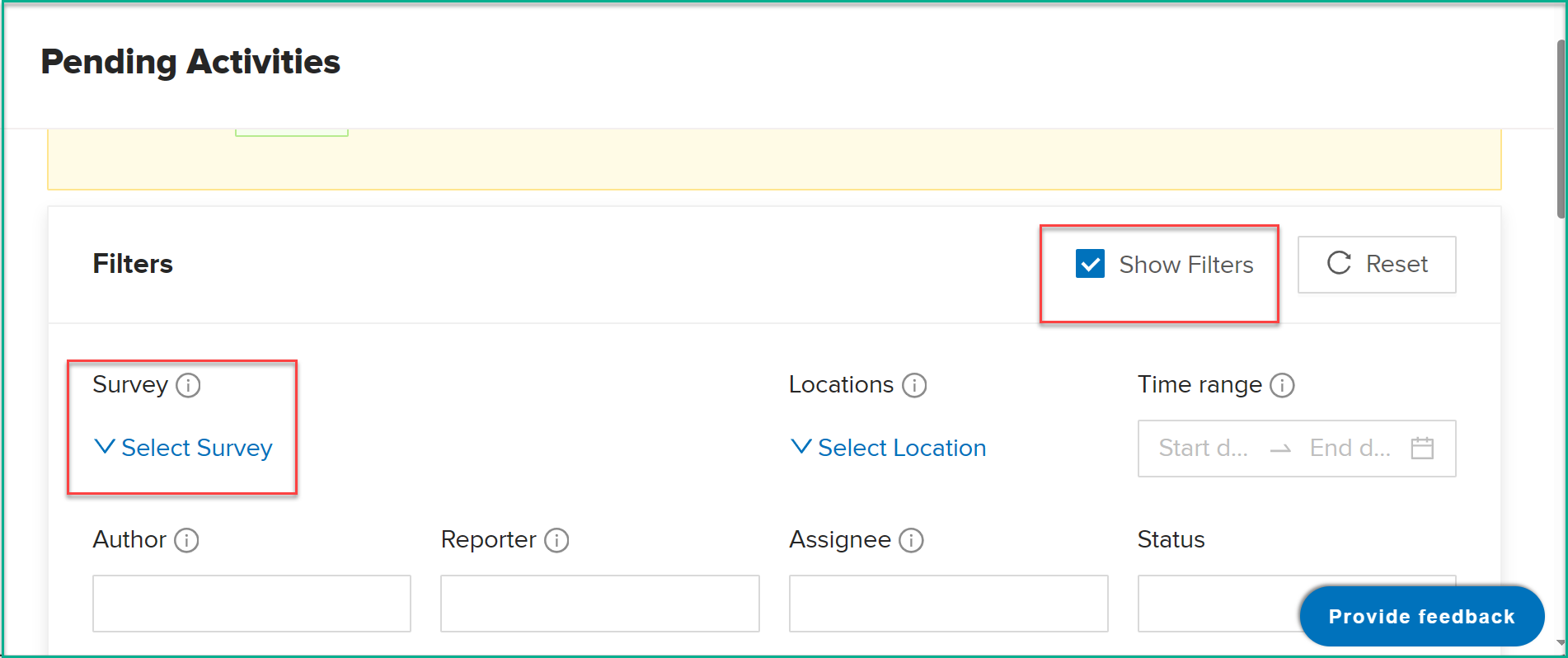
- Locate and click on the "Export" button
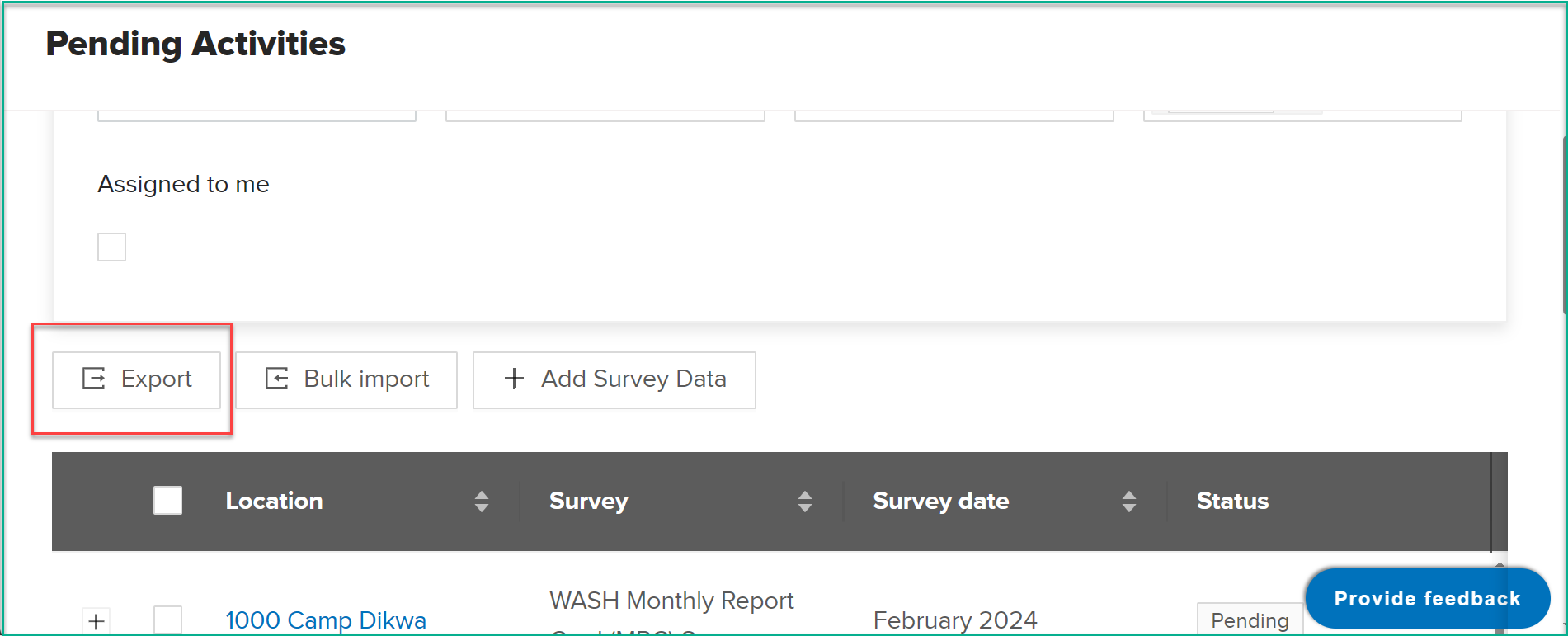
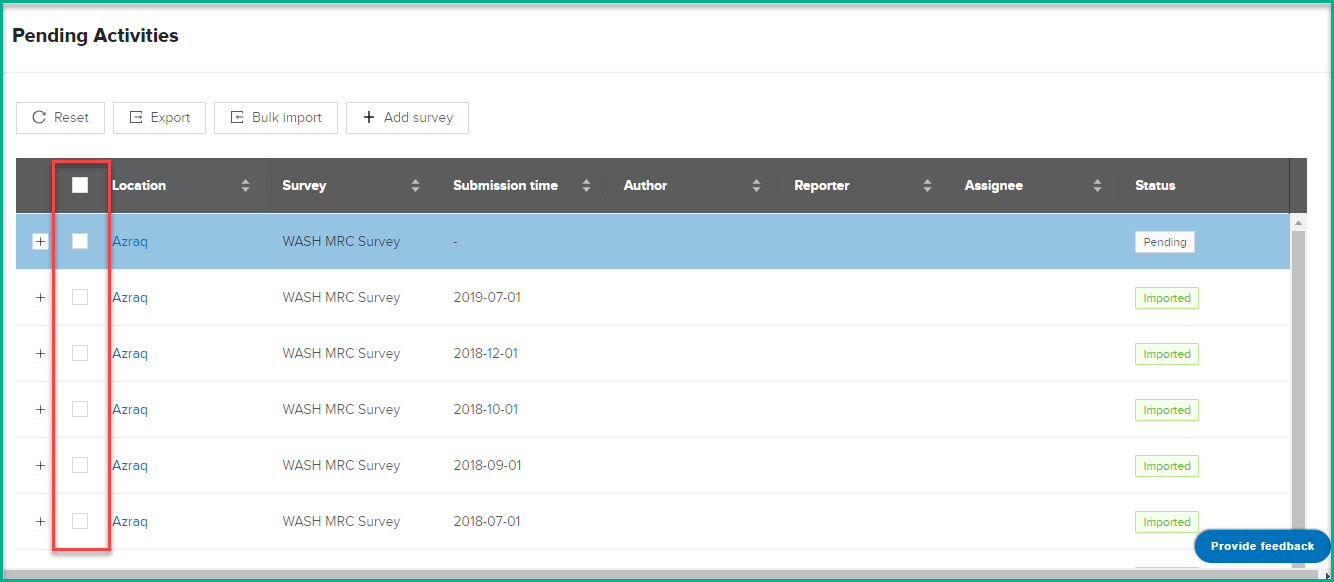
- Users are allowed to export all surveys data in bulk, or they can select specific survey records by selecting surveys using check box.
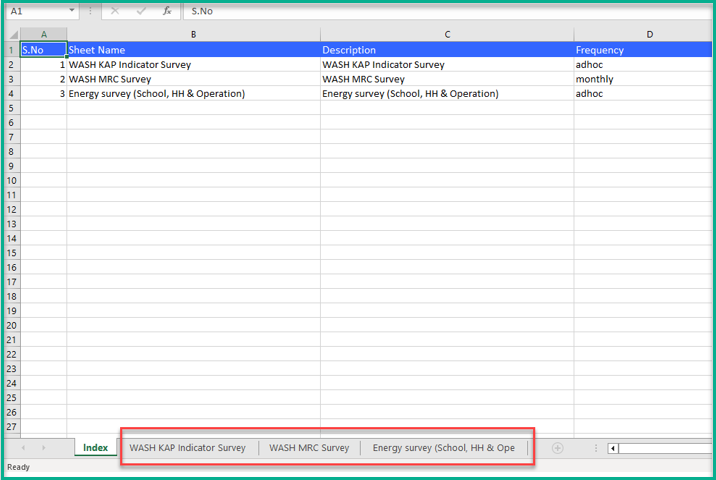
- Users can export data for one or multiple surveys together. In this case exported xls file will have multiple sheet (a sheet for each survey type)
Exporting KOBO Survey Data
This feature allows users to export survey data in xls or csv format from the Down loads page.
-
Go to https://kobo.unhcr.org/accounts/login/
-
Enter your username and password to log in.
-
Open Surveys that you want to export data for, for example, the "Settlement Survey."
- Access the "Data" tab to view survey submissions.
- Open the "Downloads" tab.
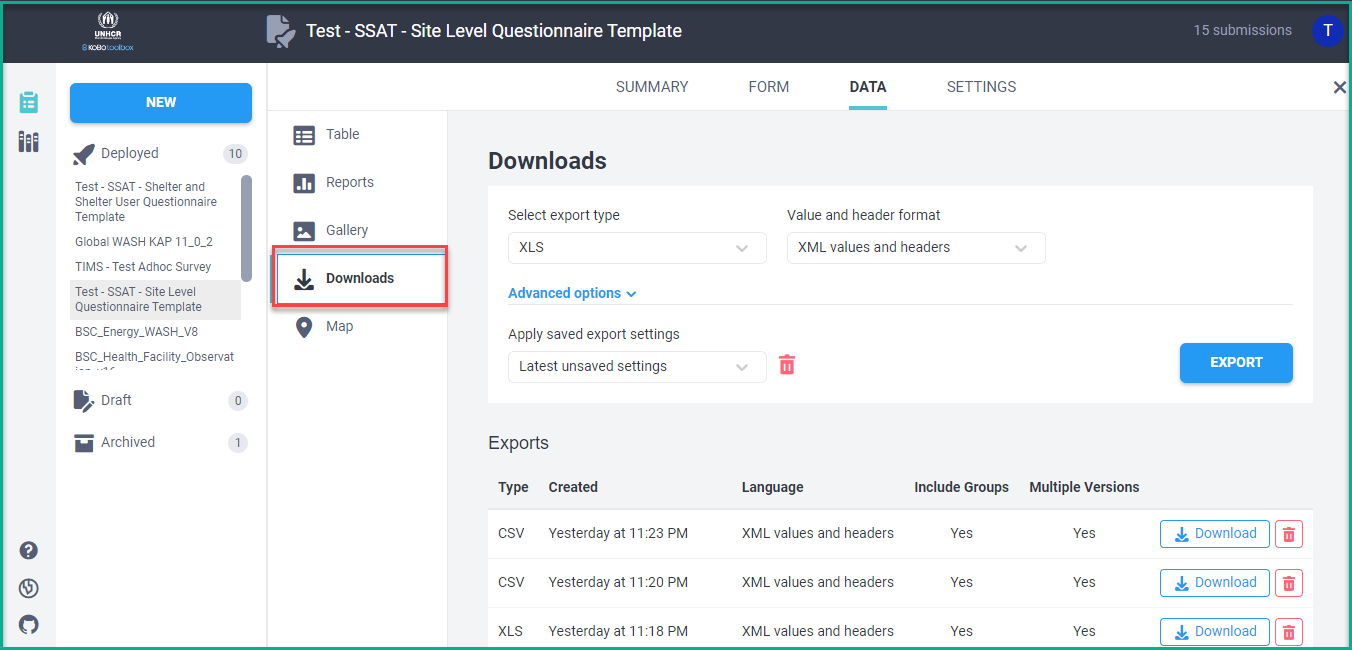
- Select "xls" or "csv" from the "Select export type" list.
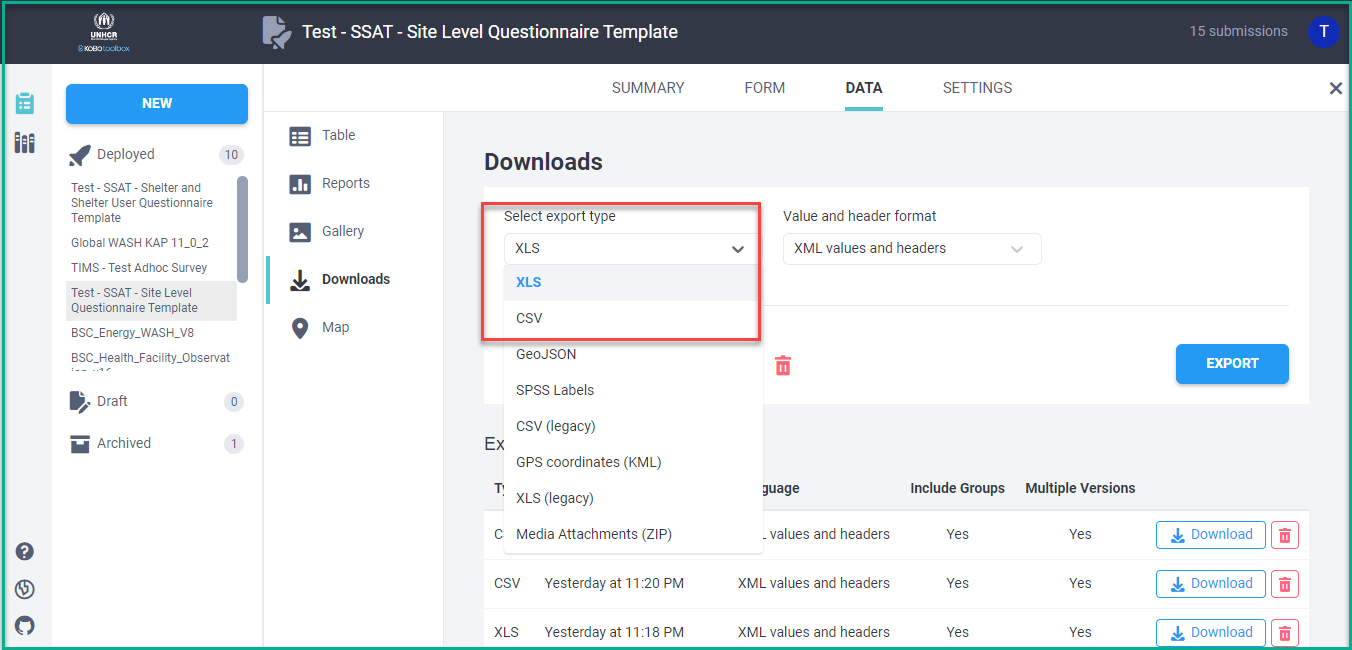
- Make sure "Advanced options" are configured as shown in the image below.
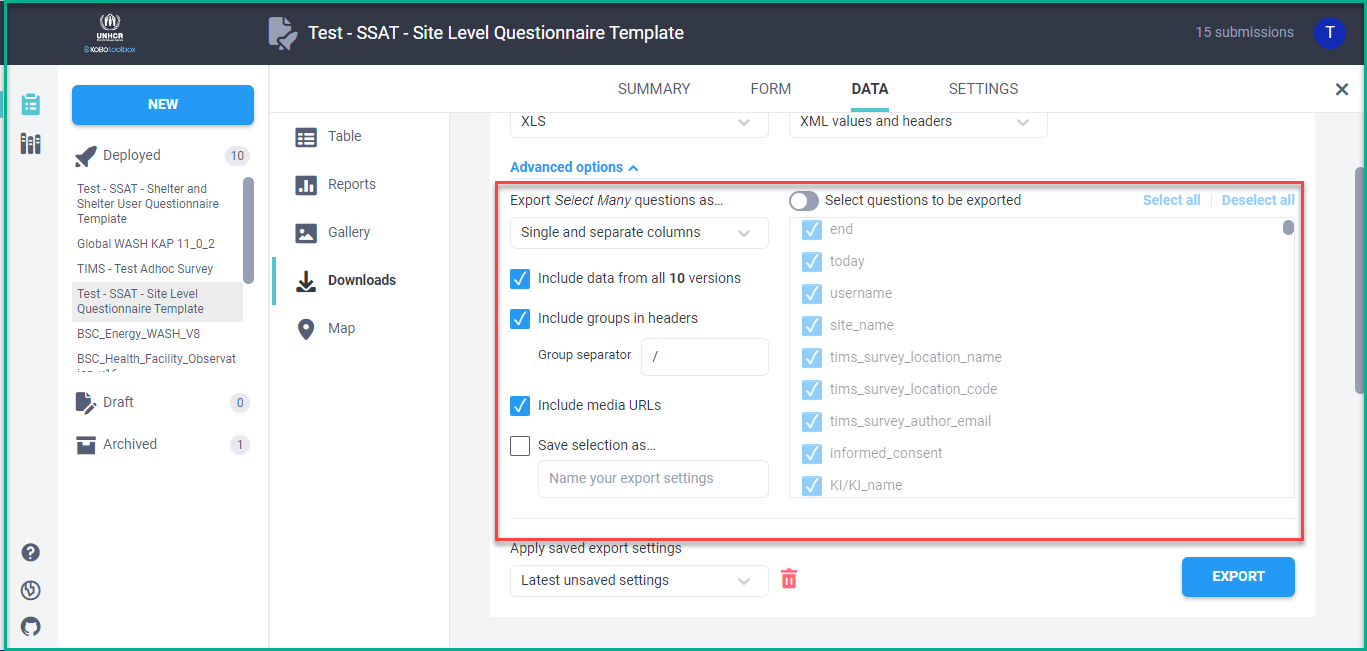
- Click the "Export" button, then click on the "Download" button.
Bulk Import
Energy Survey
What : User can upload Energy Survey data in bulk .
Who : Global Admin, Country Admin, Editor (Assigned to Energy Sector).
How :
Note: To prepare a file that you can use for bellow steps , you should filter the survey list to show only Energy survey (School, HH & Operation), then select rows that you want to update. Click on export and make any changes to the file. This will help you to make multiple changes on the same steps so you don't need to go to each survey individually."
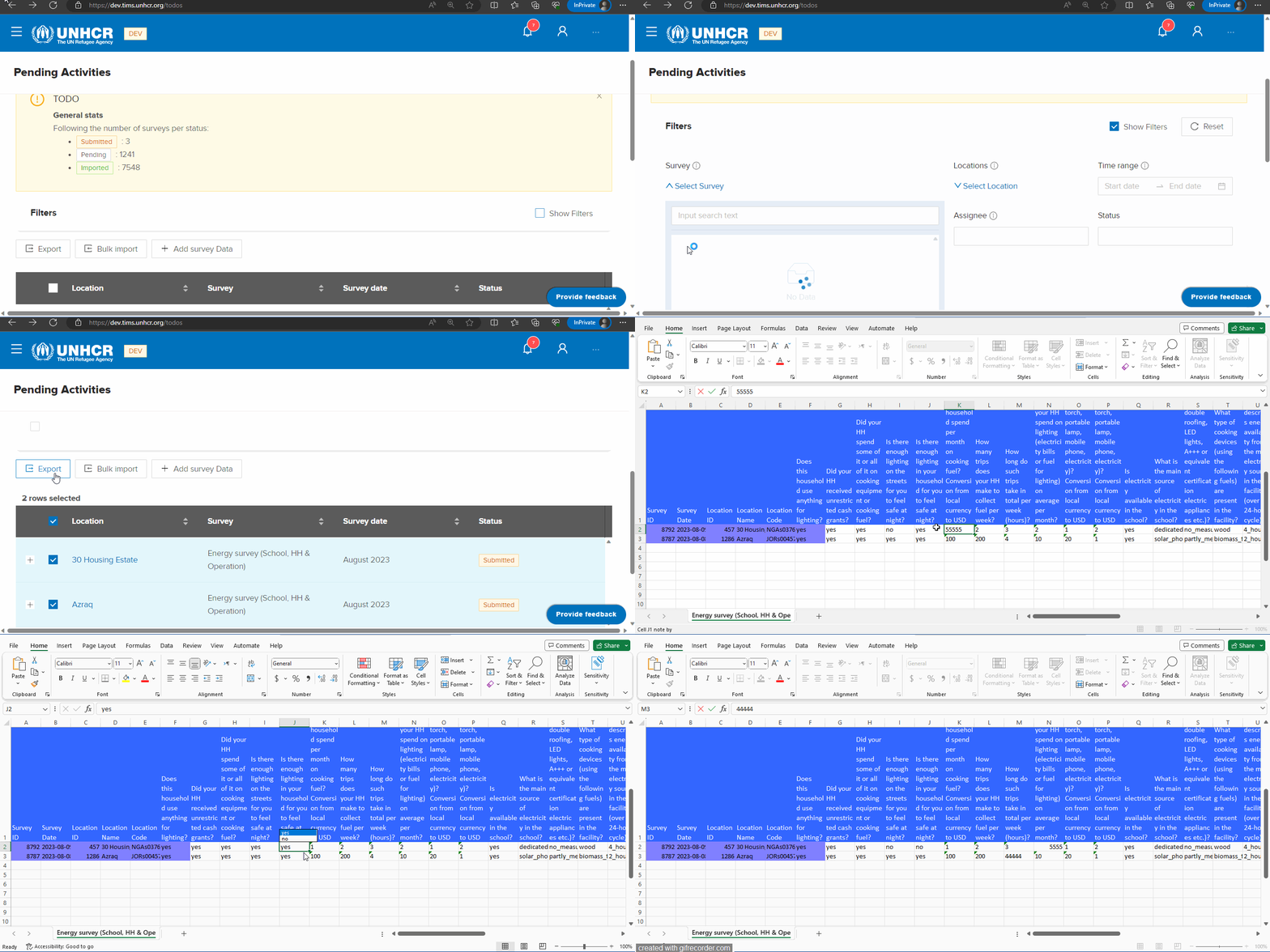
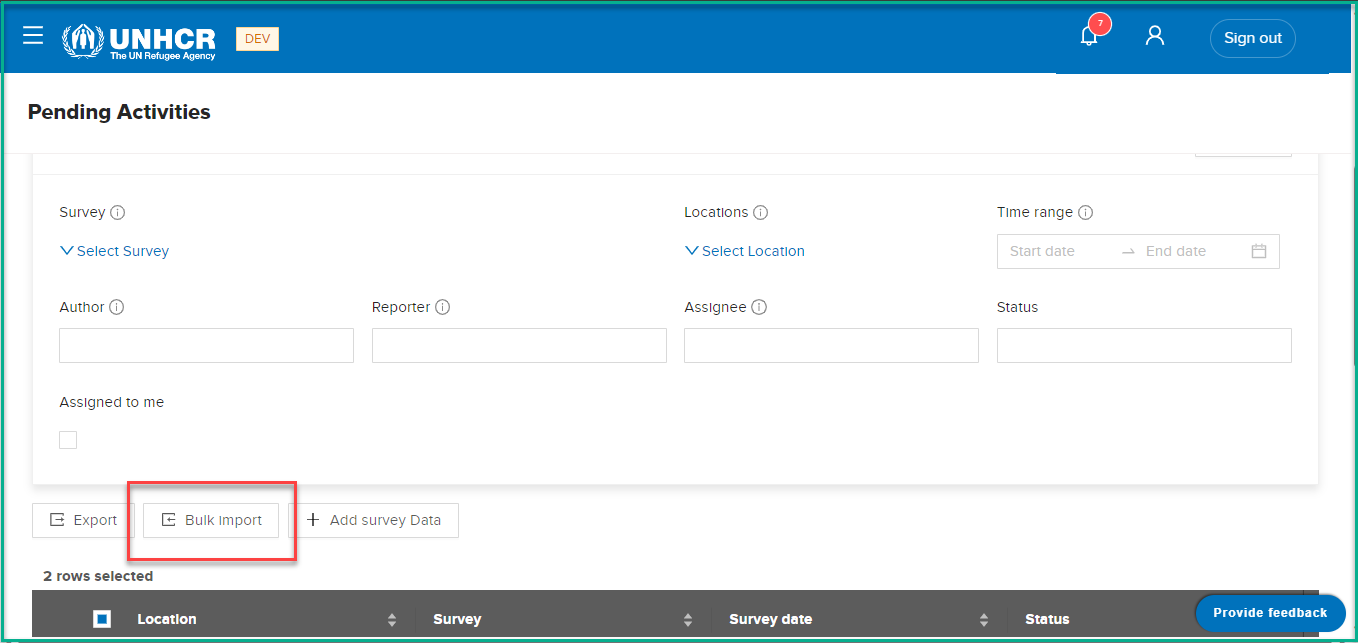
- On the "Pending Activities" page, locate and click on the "Bulk Import" button
-
A pop-up dialog titled " Bulk import of surveys" will appear.
-
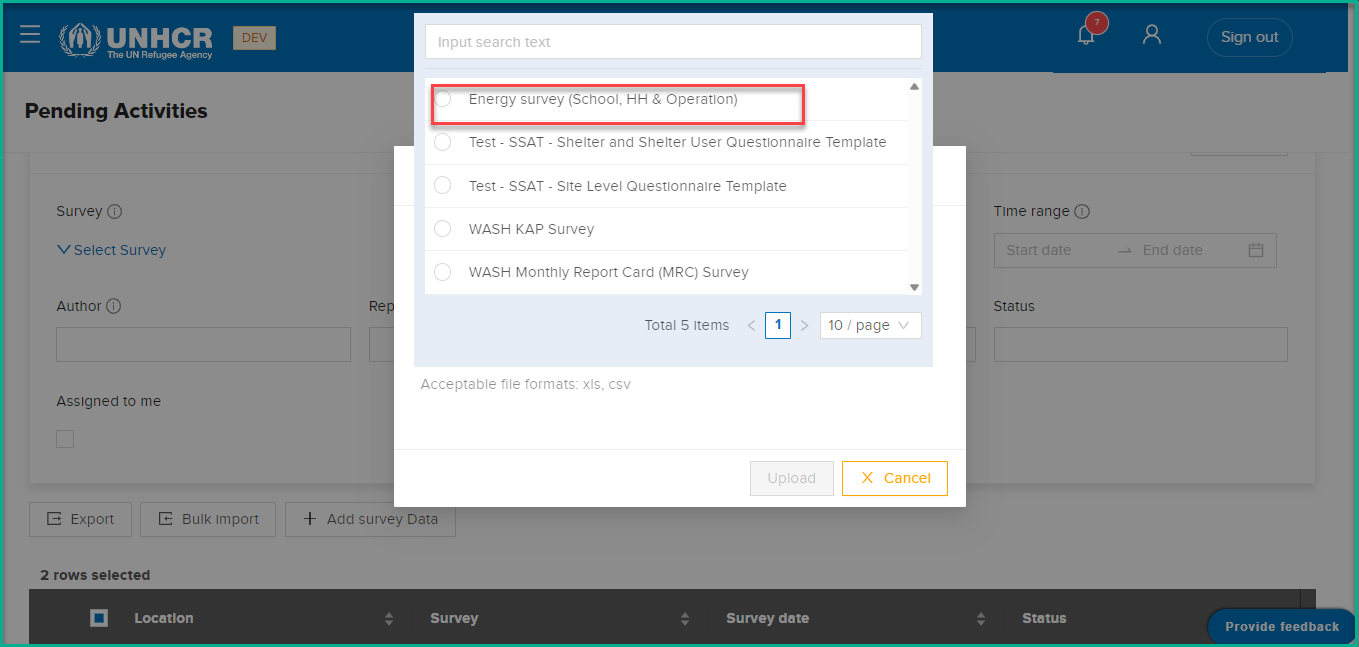
In the " Bulk import of surveys" dialog, you will see a drop-down list labeled "Survey." Click on the drop-down list.
-
From the drop-down list, select “Energy survey (School, HH & Operation)“.
-
The system opens the File Explorer window. Select the files extracted from TIMS.
-
Click on the "Upload" button. The system will close the dialog and display a message “File uploaded successfully. To review the upload progress Click Here”
-
You can go to Jobs tab to check the status of the upload. Upon successful upload of survey data It will show a record under Jobs tab with Status = Completed
-
In case of failure to data import it will show a record under Jobs tab with Status = Failed
-
You can click on the record to see the reason for failure (or error message).
WASH KAP Survey
What : User can upload xls or csv files extracted from KOBO. .
Who : Global Admin, Country Admin, Editor (Assigned to Wash Sector).
How :
• On the "Pending Activities" page, locate and click on the "Bulk Import" button
• A pop-up dialog titled " Bulk import of surveys" will appear.
• In the " Bulk import of surveys" dialog, you will see a drop-down list labeled "Survey." Click on the drop-down list.
• From the drop-down list, select “WASH KAP Survey“.
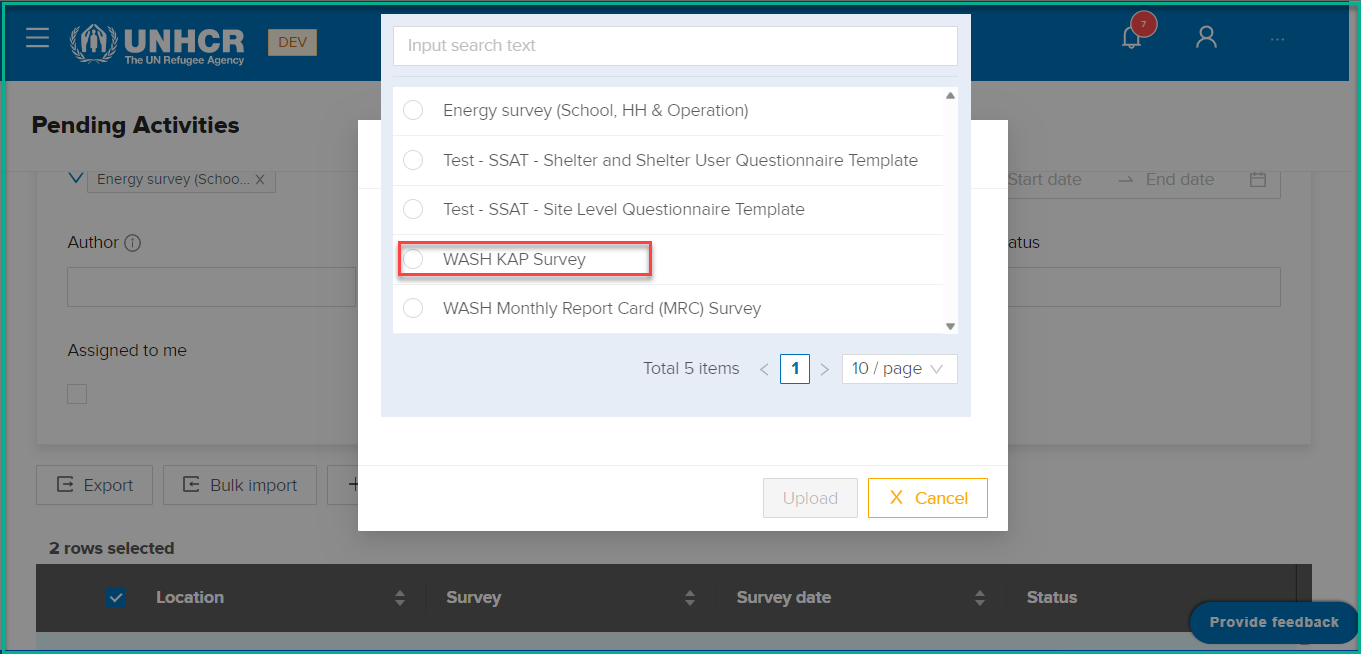
• Once you have selected the survey type, an additional drop-down list labeled "Location" will appear. This list will contain a list of sites.
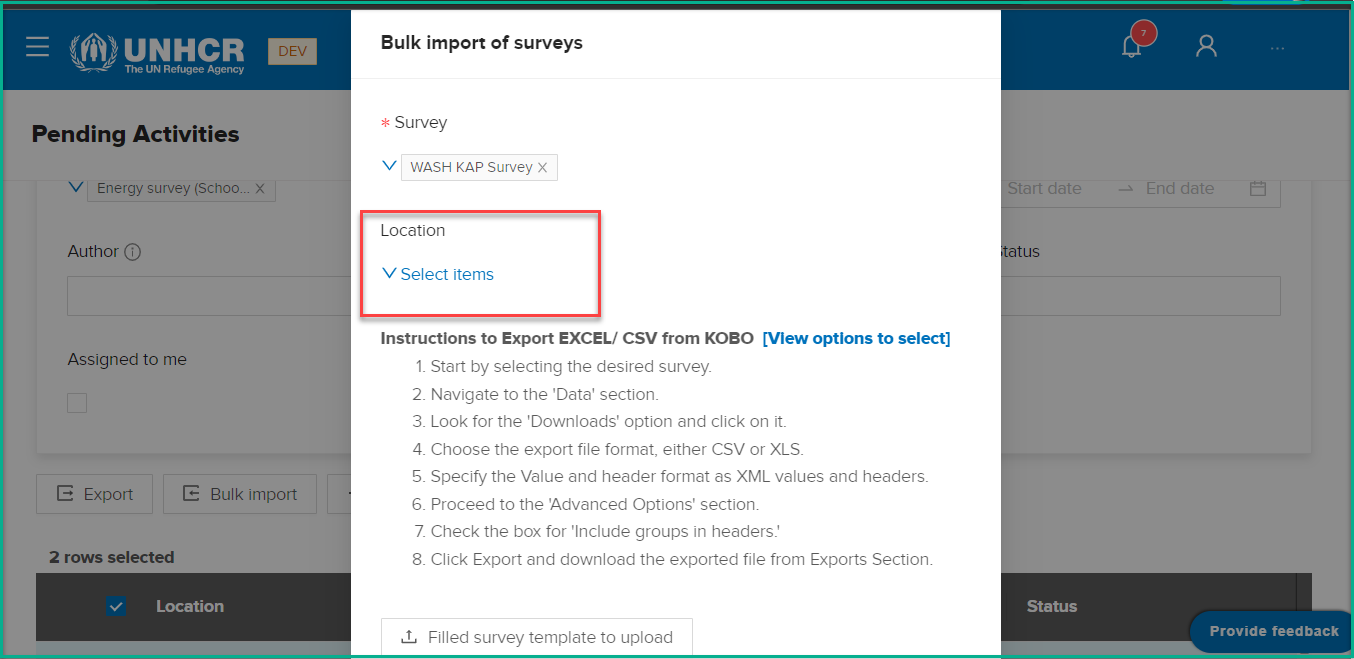
• After selecting the Location(site), click on the "Filled Survey template to upload" button within the "Bulk import of Surveys" dialog.
• The system opens the File Explorer window. Select the xls or csv files extracted from KOBO. For more detailed instructions on how to export data from Kobo, please click here .
• Click on the "Upload" button. The system will close the dialog and display a message “File uploaded successfully. To review the upload progress Click Here”
• You can go to Jobs tab to check the status of the upload. Upon successful upload of survey data It will show a record under Jobs tab with Status = Completed
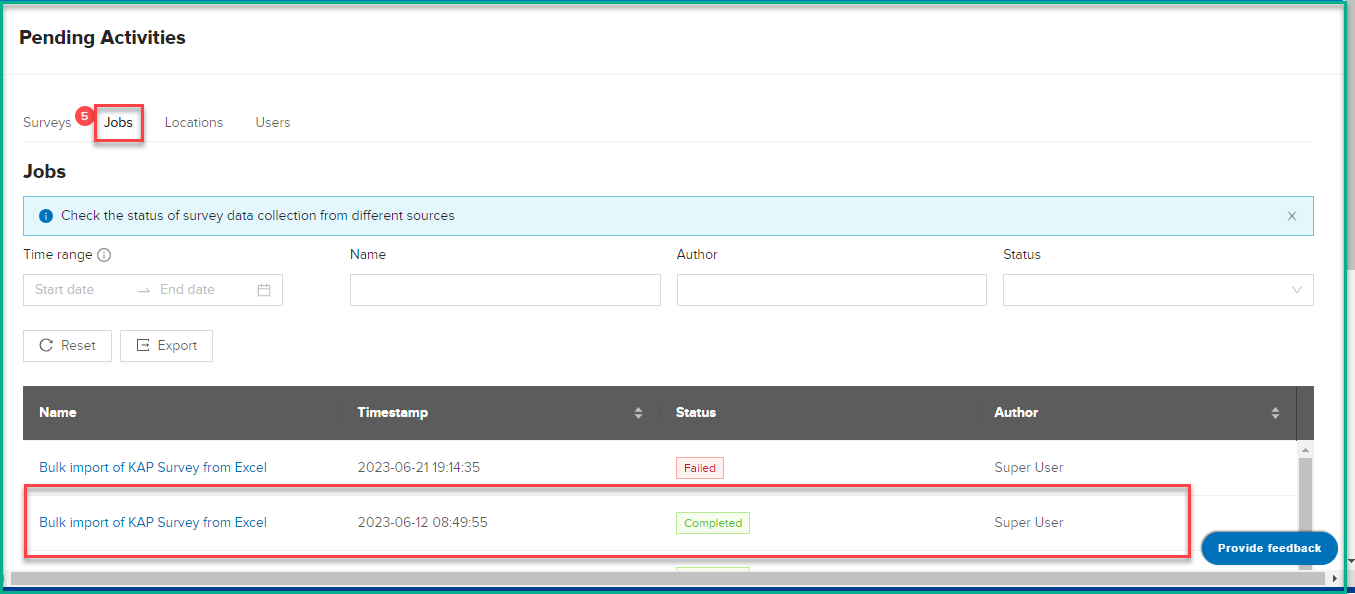
• In case of failure to data import it will show a record under Jobs tab with Status = Failed
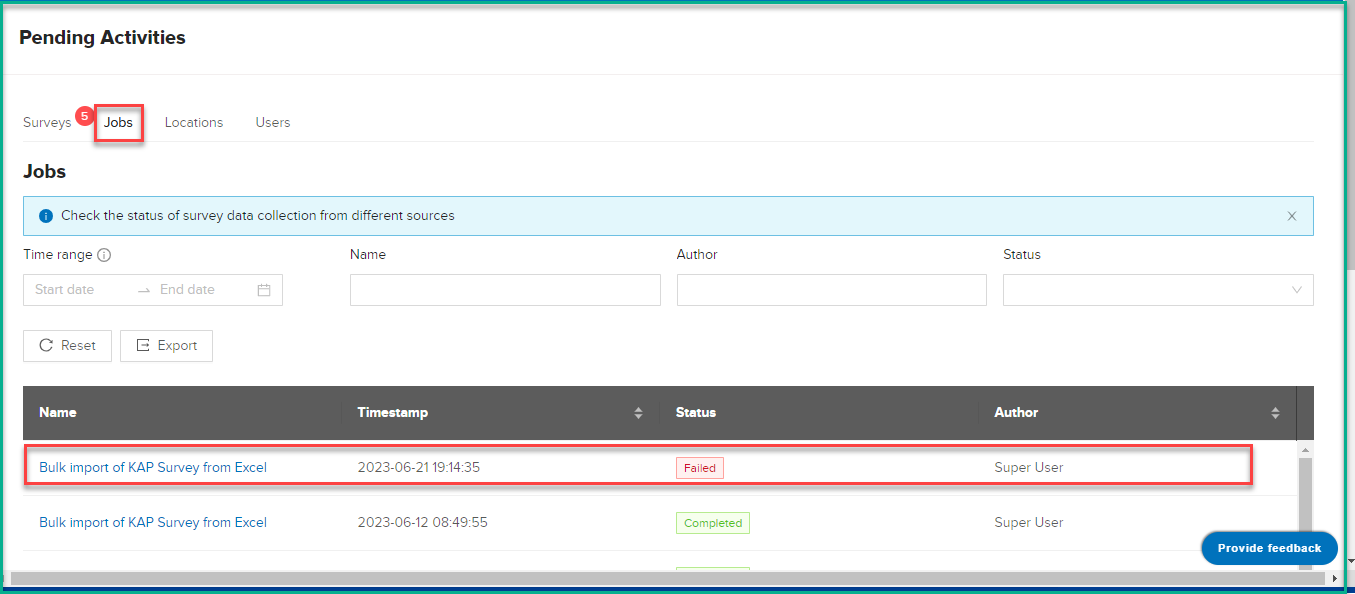
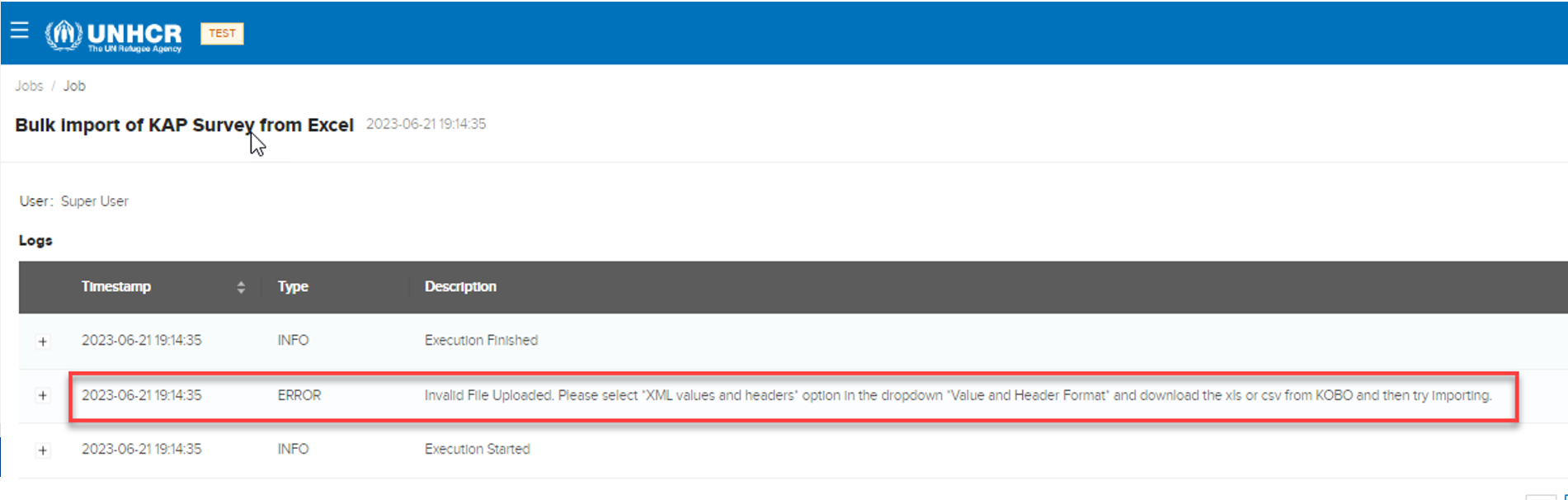
You can click on the record to see the reason for failure (or error message).
WASH Monthly Report Card (MRC)
What : User can upload Monthly Report Card (MRC) survey data in bulk .
Who : Global Admin, Country Admin, Editor (Assigned to Wash Sector).
How :
Note: To prepare a file that you can use for bellow steps , you should filter the survey list to show only MRC , then select rows that you want to update. Click on export and make any changes to the file. This will help you to make multiple changes on the same steps so you don't need to go to each survey individually."
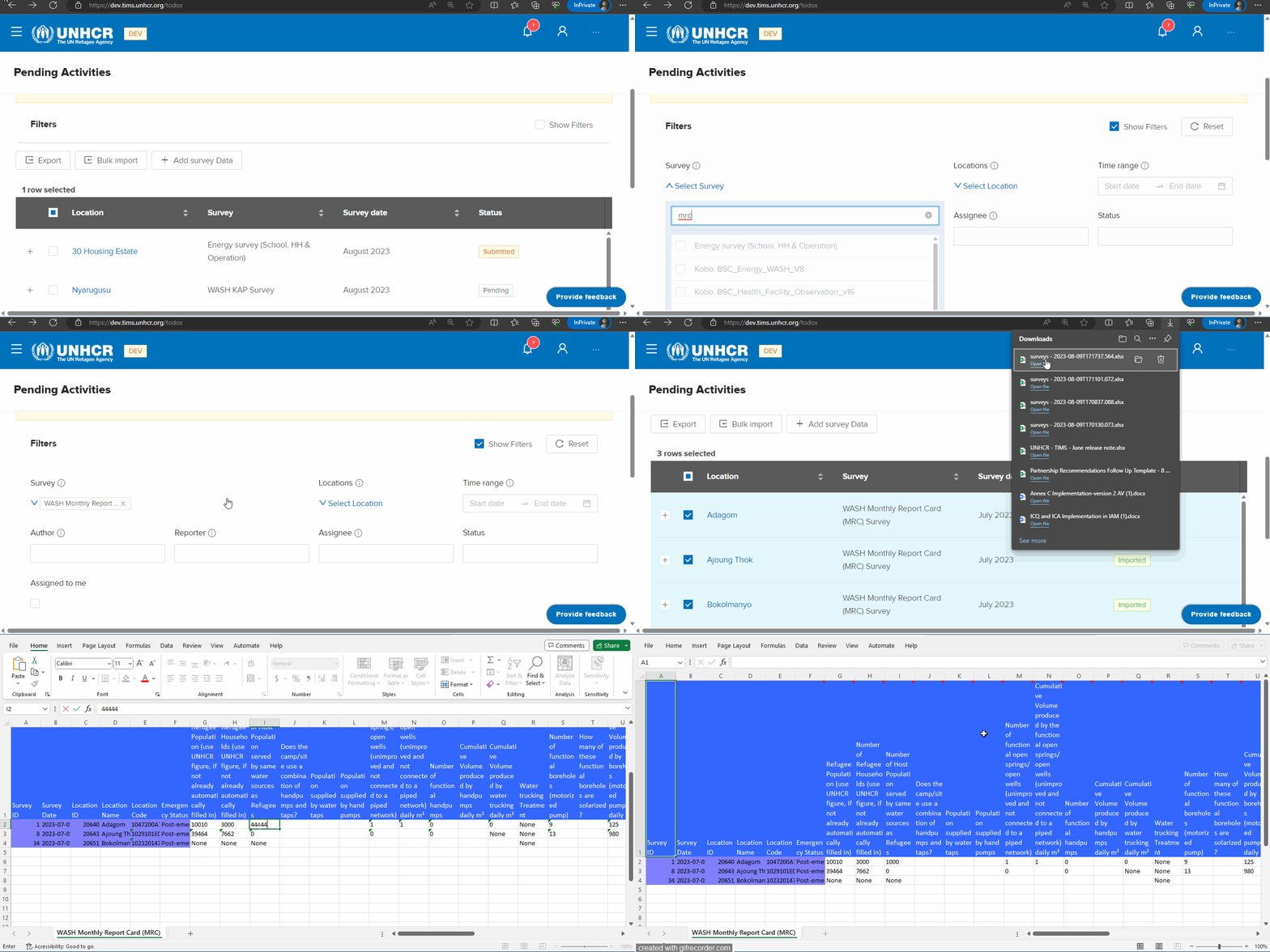
• On the "Pending Activities" page, locate and click on the "Bulk Import" button
• A pop-up dialog titled " Bulk import of surveys" will appear.
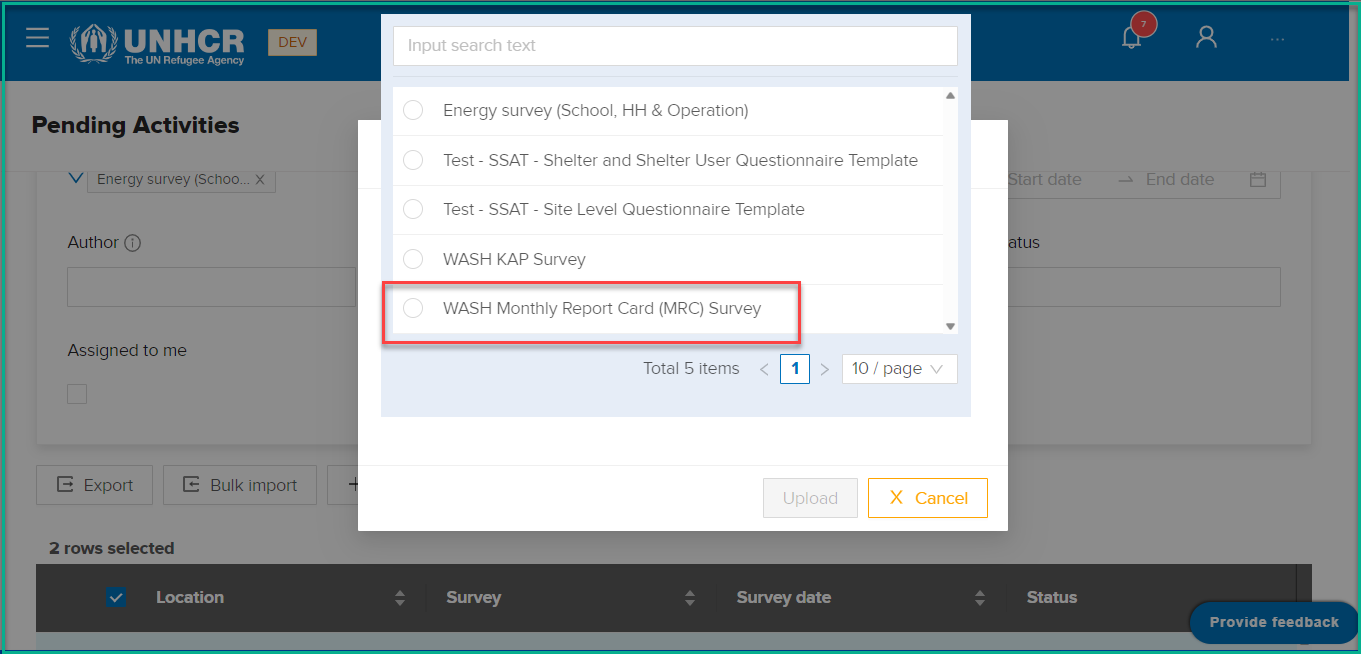
• In the " Bulk import of surveys" dialog, you will see a drop-down list labeled "Survey." Click on the drop-down list.
• From the drop-down list, select “WASH Monthly Report Card (MRC) Survey“.
• The system opens the File Explorer window. Select the files extracted from TIMS.
• Click on the "Upload" button. The system will close the dialog and display a message “File uploaded successfully. To review the upload progress Click Here”
• You can go to Jobs tab to check the status of the upload. Upon successful upload of survey data It will show a record under Jobs tab with Status = Completed
• In case of failure to data import it will show a record under Jobs tab with Status = Failed
• You can click on the record to see the reason for failure (or error message).
- You can click on the record to see the reason for failure (or error message).
Shelter Survey
What : User can upload xls or csv files extracted from KOBO.
Who : Global Admin, Country Admin, Editor (Assigned to shelter Sector).
How :
• On the "Pending Activities" page, locate and click on the "Bulk Import" button
• A pop-up dialog titled " Bulk import of surveys" will appear.
• In the " Bulk import of surveys" dialog, you will see a drop-down list labeled "Survey." Click on the drop-down list.
• From the drop-down list, select “Test - SSAT - Shelter and Shelter User Questionnaire Template“.
• Once you have selected the survey type, an additional drop-down list labeled "Location" will appear. This list will contain a list of sites.
• After selecting the Location(site), click on the "Filled Survey template to upload" button within the "Bulk import of Surveys" dialog.
• The system opens the File Explorer window. Select the xls or csv files extracted from KOBO. For more detailed instructions on how to export data from Kobo, please click here .
• Click on the "Upload" button. The system will close the dialog and display a message “File uploaded successfully. To review the upload progress Click Here”
• You can go to Jobs tab to check the status of the upload. Upon successful upload of survey data It will show a record under Jobs tab with Status = Completed
• In case of failure to data import it will show a record under Jobs tab with Status = Failed
You can click on the record to see the reason for failure (or error message).
Settlement Survey
What : User can upload xls or csv files extracted from KOBO.
Who : Global Admin, Country Admin, Editor (Assigned to Settlement Sector).
How :
• On the "Pending Activities" page, locate and click on the "Bulk Import" button
• A pop-up dialog titled " Bulk import of surveys" will appear.
• In the " Bulk import of surveys" dialog, you will see a drop-down list labeled "Survey." Click on the drop-down list.
• From the drop-down list, select “Test - SSAT - Site Level Questionnaire Template“.
• Once you have selected the survey type, an additional drop-down list labeled "Location" will appear. This list will contain a list of sites.
• After selecting the Location(site), click on the "Filled Survey template to upload" button within the "Bulk import of Surveys" dialog.
• The system opens the File Explorer window. Select the xls or csv files extracted from KOBO. For more detailed instructions on how to export data from Kobo, please click here .
• Click on the "Upload" button. The system will close the dialog and display a message “File uploaded successfully. To review the upload progress Click Here”
• You can go to Jobs tab to check the status of the upload. Upon successful upload of survey data It will show a record under Jobs tab with Status = Completed
• In case of failure to data import it will show a record under Jobs tab with Status = Failed
You can click on the record to see the reason for failure (or error message).
Energy & WASH Survey in Schools Survey
What : User can upload xls or csv files extracted from KOBO.
Who : Global Admin, Country Admin, Editor (Assigned to Energy Sector).
How :
• On the "Pending Activities" page, locate and click on the "Bulk Import" button
• A pop-up dialog titled " Bulk import of surveys" will appear.
• In the " Bulk import of surveys" dialog, you will see a drop-down list labeled "Survey." Click on the drop-down list.
• From the drop-down list, select “Energy & WASH Survey in Schools“.
• Once you have selected the survey type, an additional drop-down list labeled "Location" will appear. This list will contain a list of sites.
• After selecting the Location(site), click on the "Filled Survey template to upload" button within the "Bulk import of Surveys" dialog.
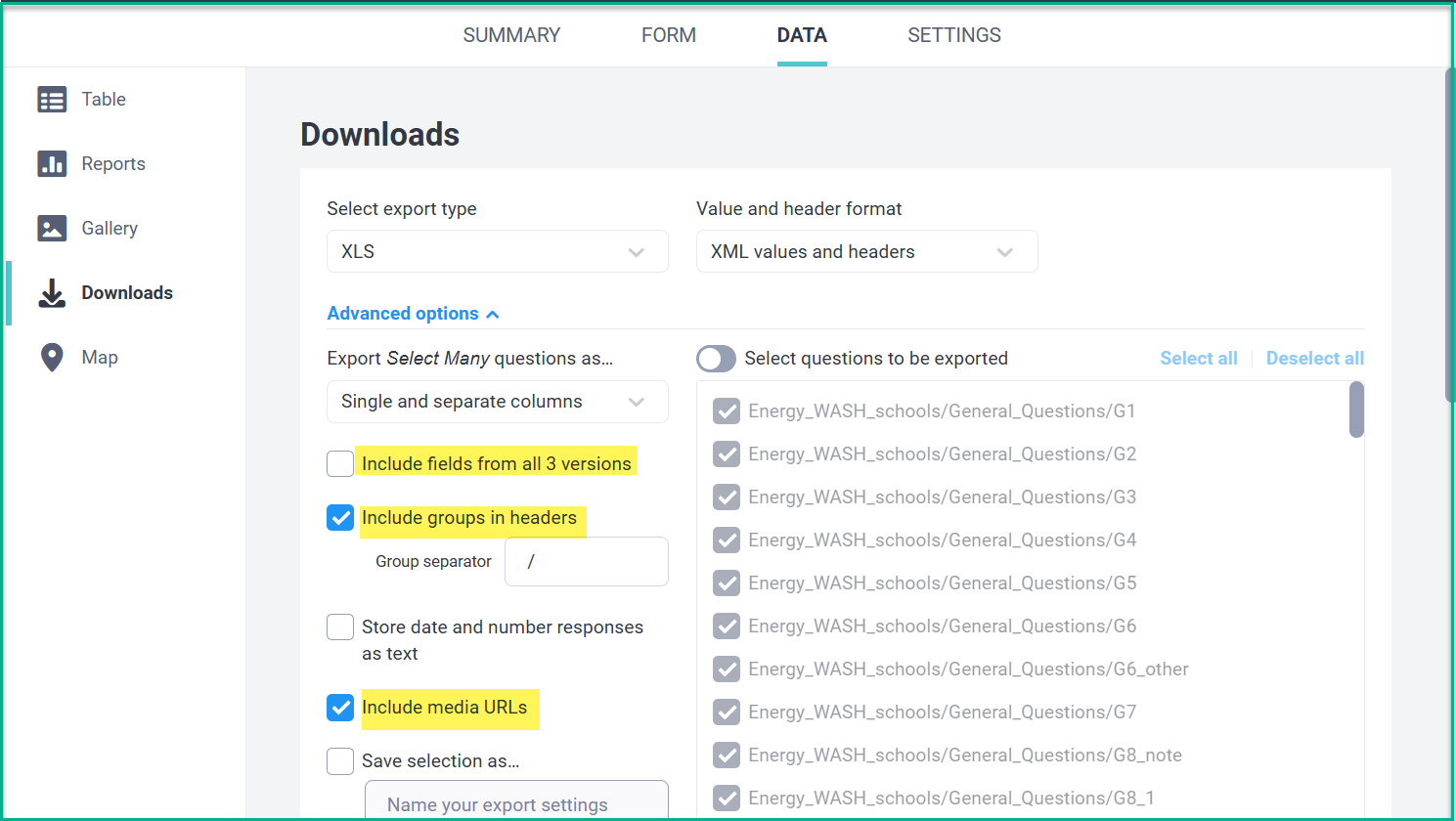
• The system opens the File Explorer window. Select the xls or csv files extracted from KOBO. Please make sure that when you export a file from Kobo, the settings should be like the image below
• Click on the "Upload" button. The system will close the dialog and display a message “File uploaded successfully. To review the upload progress Click Here”
• You can go to Jobs tab to check the status of the upload. Upon successful upload of survey data It will show a record under Jobs tab with Status = Completed
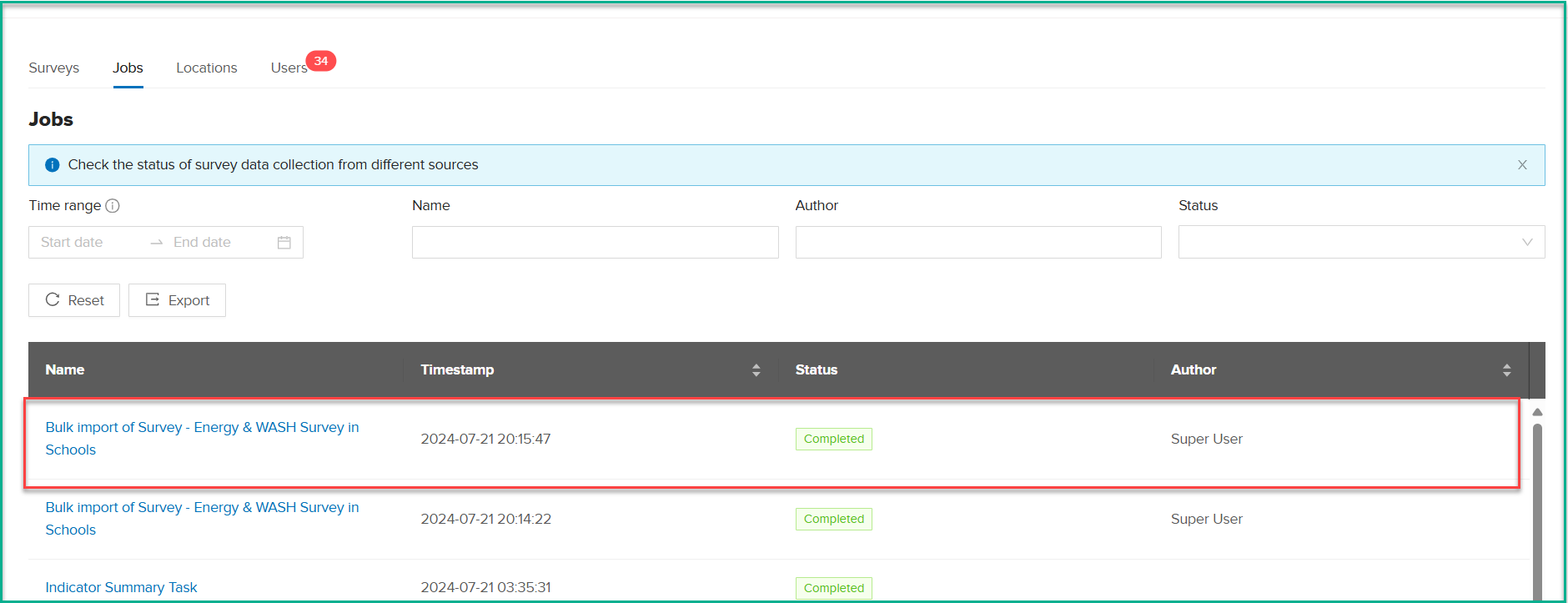
• In case of failure to data import it will show a record under Jobs tab with Status = Failed
You can click on the record to see the reason for failure (or error message).
Assigning Surveys
What : Admin can assign survey to specific user to collect data..
Who : Global Admin and Country Admin.
How :
-
Go to the "Surveys" table view and click on the survey name .(Note: The Assign Survey feature is available for Energy (School, HH),MRC(Monthly Report Card) and WASH KAP Survey (Indicator) Surveys.)
-
Click on the "Assign Survey" button on the new tab.
-
Select an assignee from the list (single select).
-
Optionally, add a comment for the assignee.
-
Click the "Assign" button to complete the assignment.
-
Assigned users can see their surveys using "Filter Survey List" with "Assign to Me" option.
-
Editors can fill out surveys even if not assigned to them, ensuring smooth data collection.
Change Survey Status
What : User can change Survey Status.
Who : Global Admin , Country Admin and Editor.
How :
-
Go to the "Surveys" table view and click on the survey name .(Note: This feature is available for Energy (School, HH),MRC(Monthly Report Card) and WASH KAP Survey (Indicator) Surveys.)
-
Click on the "Edit Status" button on the new tab.
-
Select the status from the list (single select).
-
Optionally, add a comment for the assignee.
-
Click the "Submit" button .
Initialize Survey Location
What : Users can initialize survey locations.
Who : Global Admin .
How :
- Navigate to the "Surveys" table view and select the desired survey that needs location initialization. For example, refer to the screenshot below where you can see a survey named "Kobo: BSC_Health_Facility_Observation_v16" with a status of "N/A," indicating that it needs to be initialized.
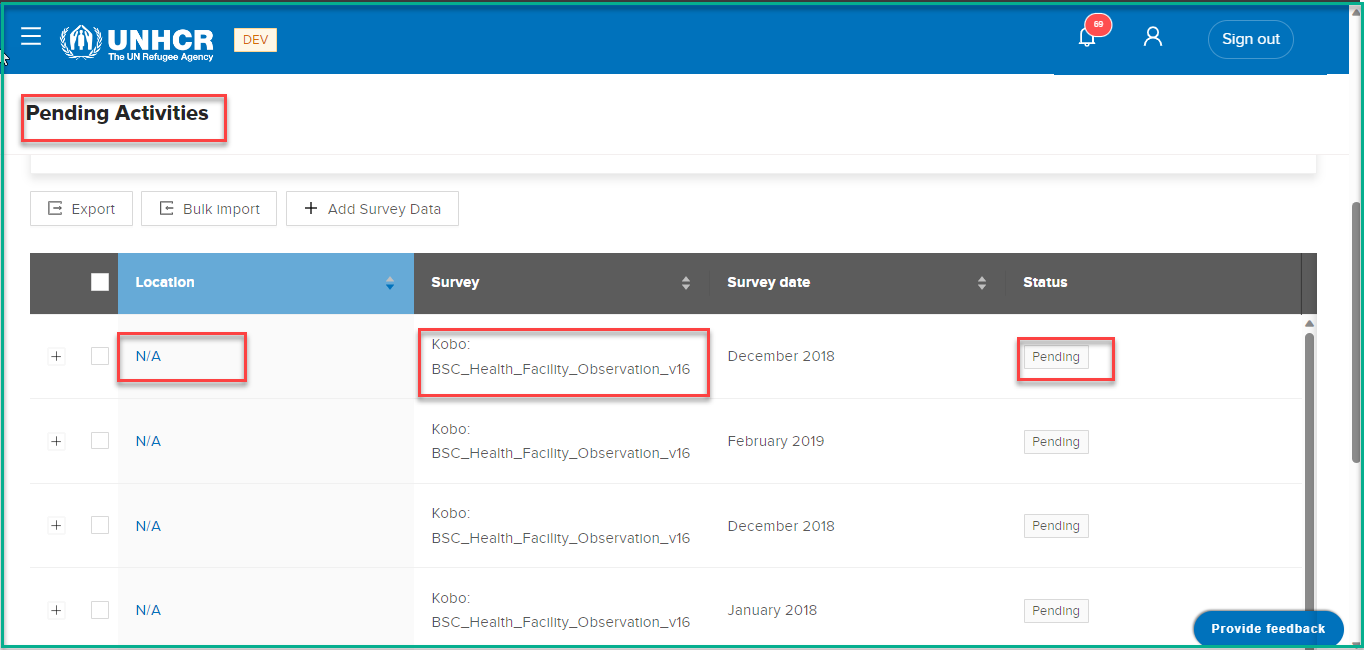
- Click on the "N/A" word.
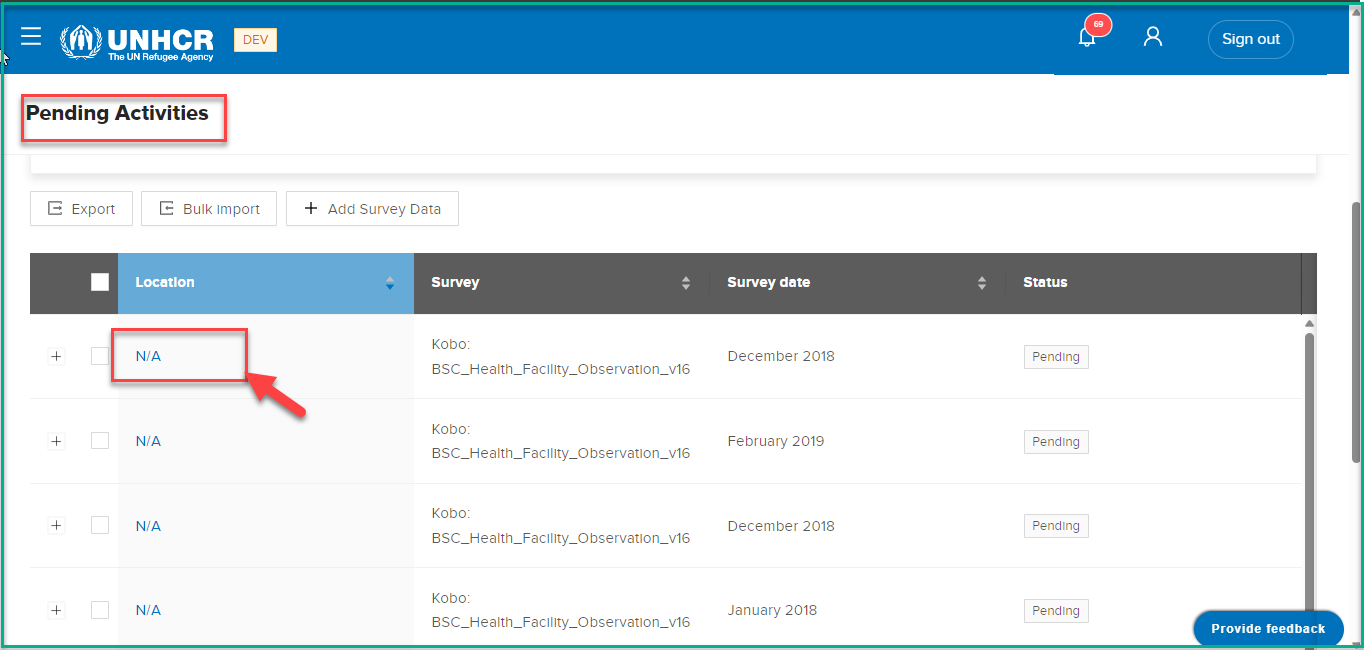
- The system will open a new page where you have two options for initializing this survey's location:
If you want to initialize the survey to an already existing location, click on "click here" The system will open a dialog. Choose the location from the options provided and click "Submit."
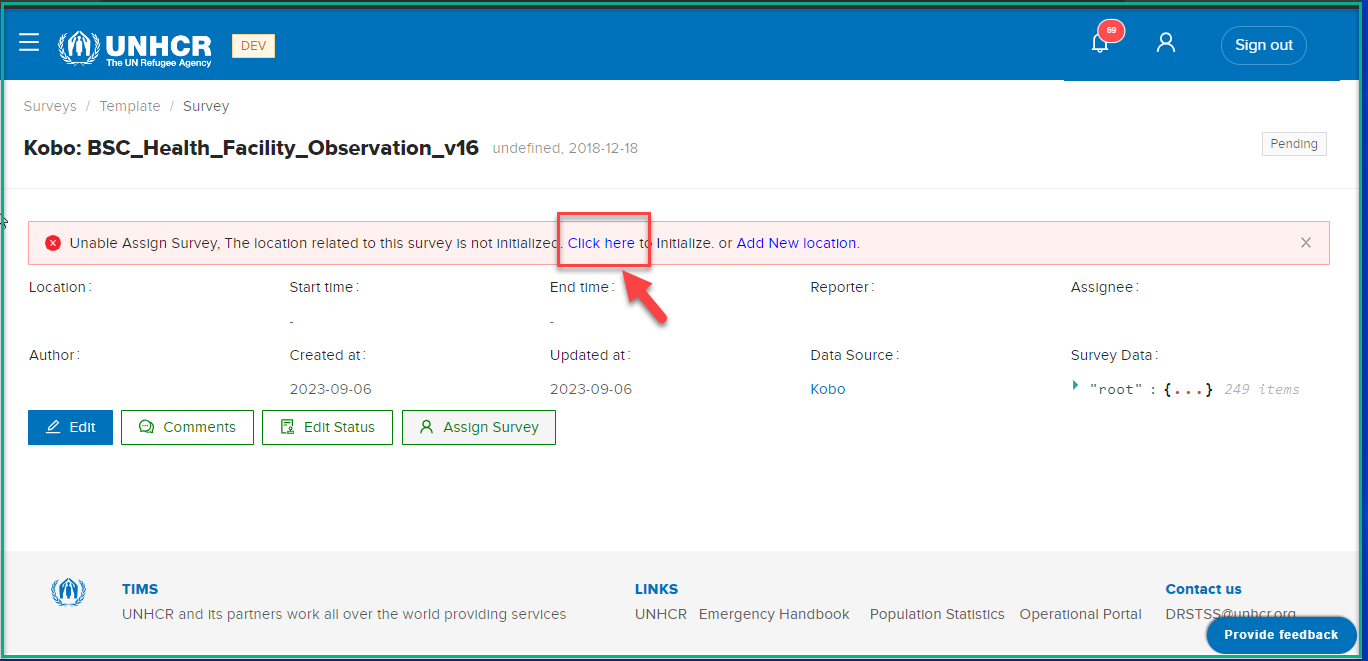
If you want to initialize the survey to a new location, click on "Add New Location." The system will open a dialog where you should fill in all the required location data. After filling in the data, click "Save."
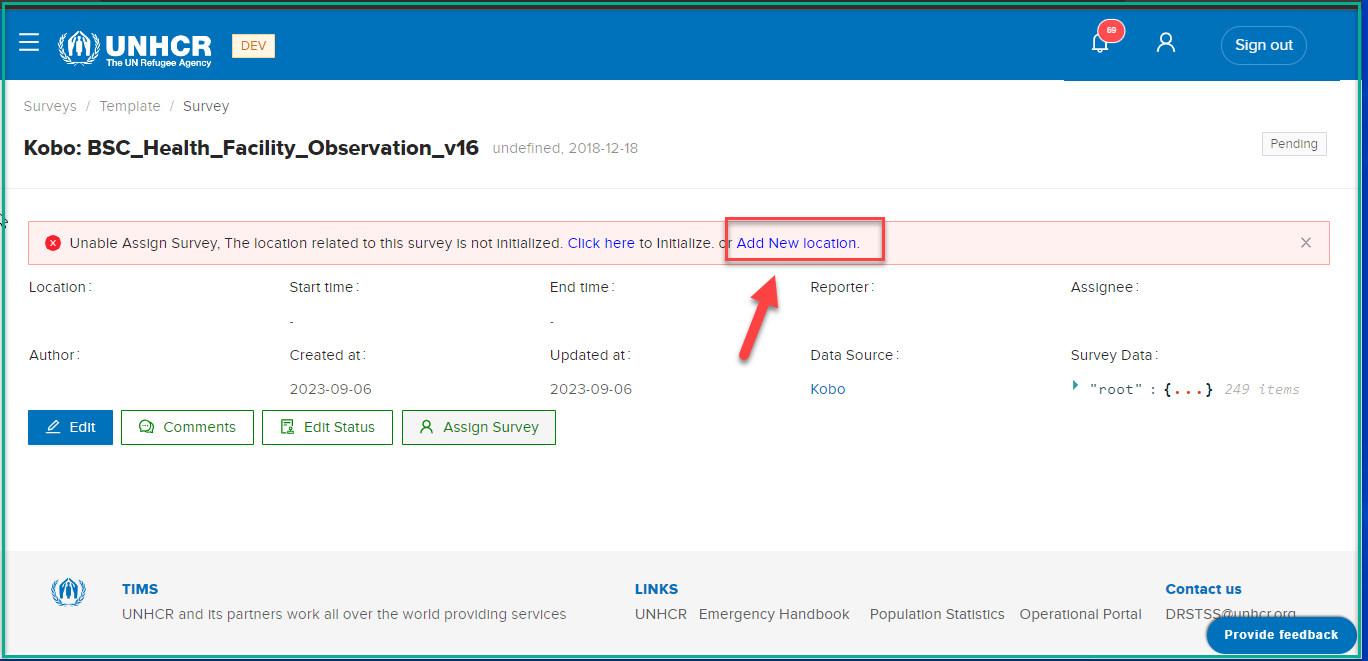
- After creating the location, click on "click here" and select the location you just added.