Getting Started on TIMS
Welcome to our application! This guide will help you get started with creating your account and signing in. Whether you're an end user or a global admin, we have outlined two workflows to accommodate your specific needs.
Account Creation
There are two different workflows available for creating your account, depending on your role and the preferred method. Please choose the workflow that best suits your needs:
Workflow 1: User Signup via Signup Page
This workflow involves end users registering themselves through a signup page to create their accounts.
How :
- Go to https://tims.unhcr.org/ in your web browser.
- Click on "Sign Up" button.
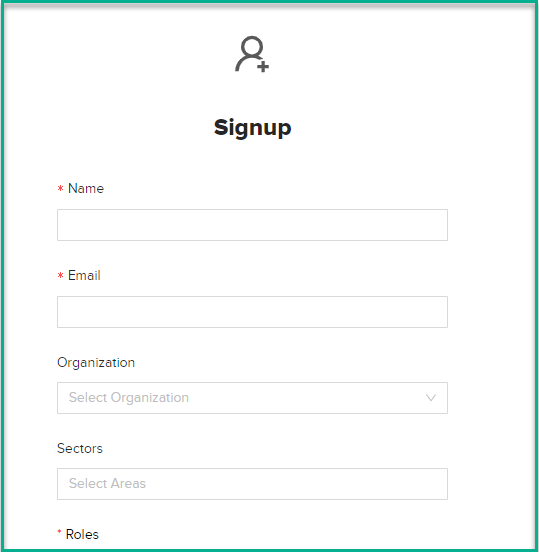
- You will be directed to the User Signup page.
-
Fill out the required information in the provided fields.
User Account Information
-
Name : Enter your full name.
-
Email : Provide a valid email address that will be associated with your account.
-
Organization : Select your organization from the available options.
-
Sectors : Choose the sectors that align with your work or interests.
-
Roles : Choose your desired role or position within the organization.
-
-
Once you have filled in all the necessary details, review the information for accuracy.
- Click on the "Request Access" button to proceed with creating your account.
- A confirmation email will be sent , informing you that an email has been sent for approval from the Global Admin.
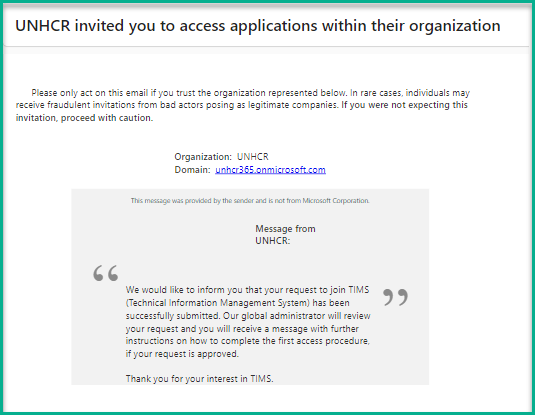
- Wait for approval from the Global Admin. They will review your request and determine whether to approve or reject it.
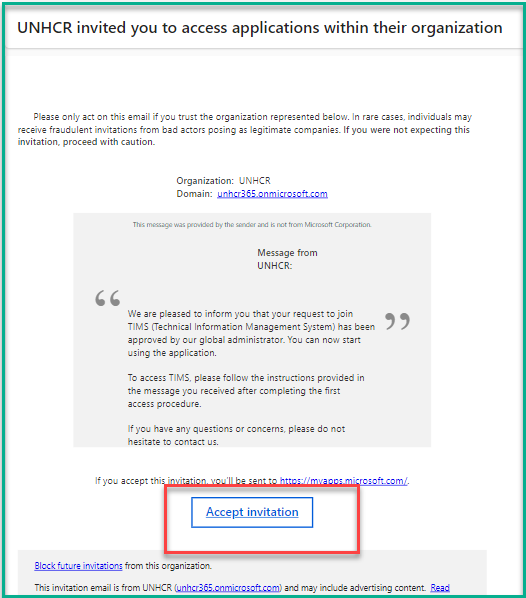
- Once your account is approved, you will receive an email notification please click on 'Accept Invitation button .
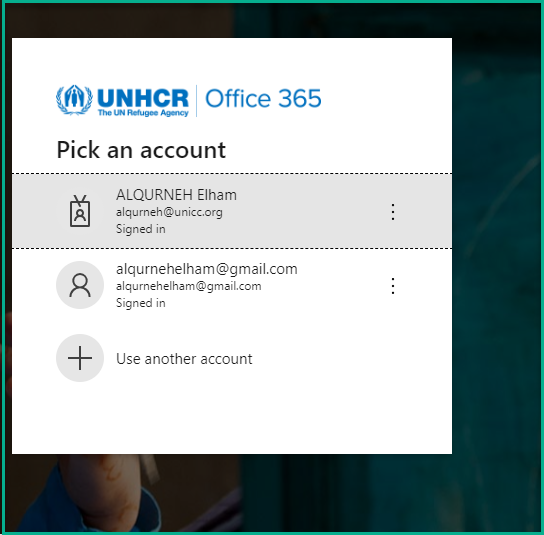
- Go to https://tims.unhcr.org/
- Click on the 'Sign In' button.
- Enter your email and password, then log in.
Workflow 2: Creating Users by the Global Admin
This workflow involves a global admin manually creating user accounts within the system.
What : Add new user.
Who : Global Admin.
How :
- Go to https://tims.unhcr.org/ in your web browser.
- Log in as a global admin user.
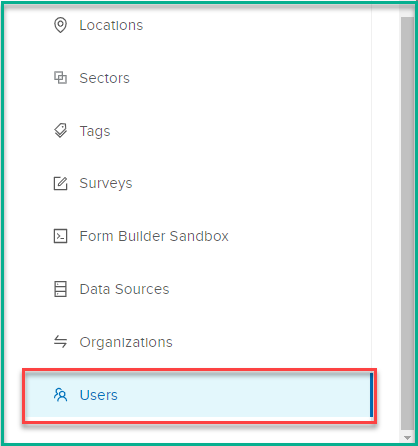
- Navigate to the "Users" page.
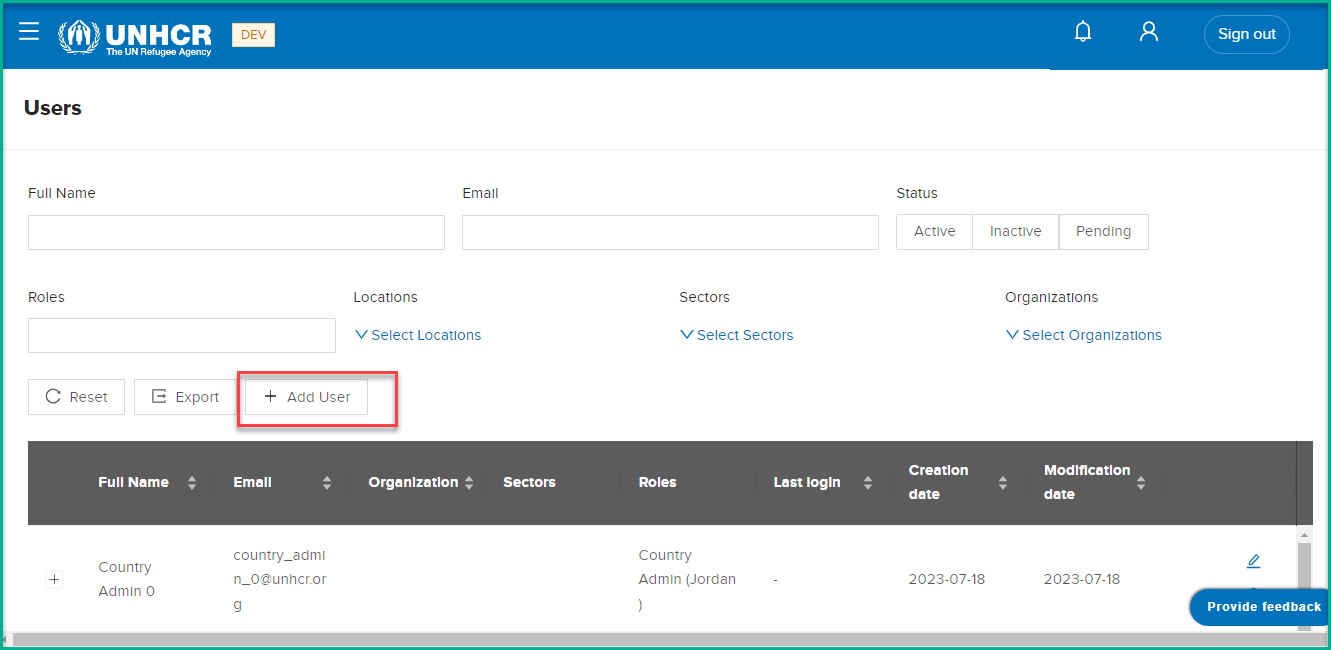
- Click on the "Add User" button.
- Fill in the required user data in the provided fields.
-
Click on the "Submit" button.
-
A new notification will be sent to the user, inviting them to start using the system.
Sign in
Testing Users for UAT Testing
If you are part of our UAT (User Acceptance Testing) team, you can sign in using the testing credentials provided. This allows you to access our application and provide valuable feedback during the testing phase.,will delete this section on prod,
What : Sign in using testing users for uat testing .
Who : UNHCR- UAT (User Acceptance Testing) team.
How :
-
Go to https://tims.unhcr.org/ in your web browser.
-
Sign in with your username and password for which role you want to test (The password is the same for all accounts and will be shared during the testing sessions).
Testing
| Email                     | Role                         |
| :----------               | :----------------------------------- |
| super_user@unhcr.org      | Global role       |
| country_admin_0@unhcr.org | Country Admin (Jordan)    |
| country_admin_1@unhcr.org | Country Admin (Chad)      |
| editor_0@unhcr.org        | Editor (Azraq)         |
| editor_1@unhcr.org        | Editor (Gaga)          |
| technician_0@unhcr.org    | Technician         |
| viewer_0@unhcr.org   | Viewer            |
Sign in Using Active Directory
- Go to https://tims.unhcr.org/
- Click on the 'Sign In' button.
- Enter your email and password, then log in.
Selecting Your Favorite Sector
As part of personalizing your experience on our application, you have the option to select a favorite sector. This sector will be highlighted when you log in, making it easier for you to access the information most relevant to your work or interests.
How to Select Your Favorite Sector:
-
Log in to your account by visiting https://tims.unhcr.org/ and clicking the 'Sign In' button.
-
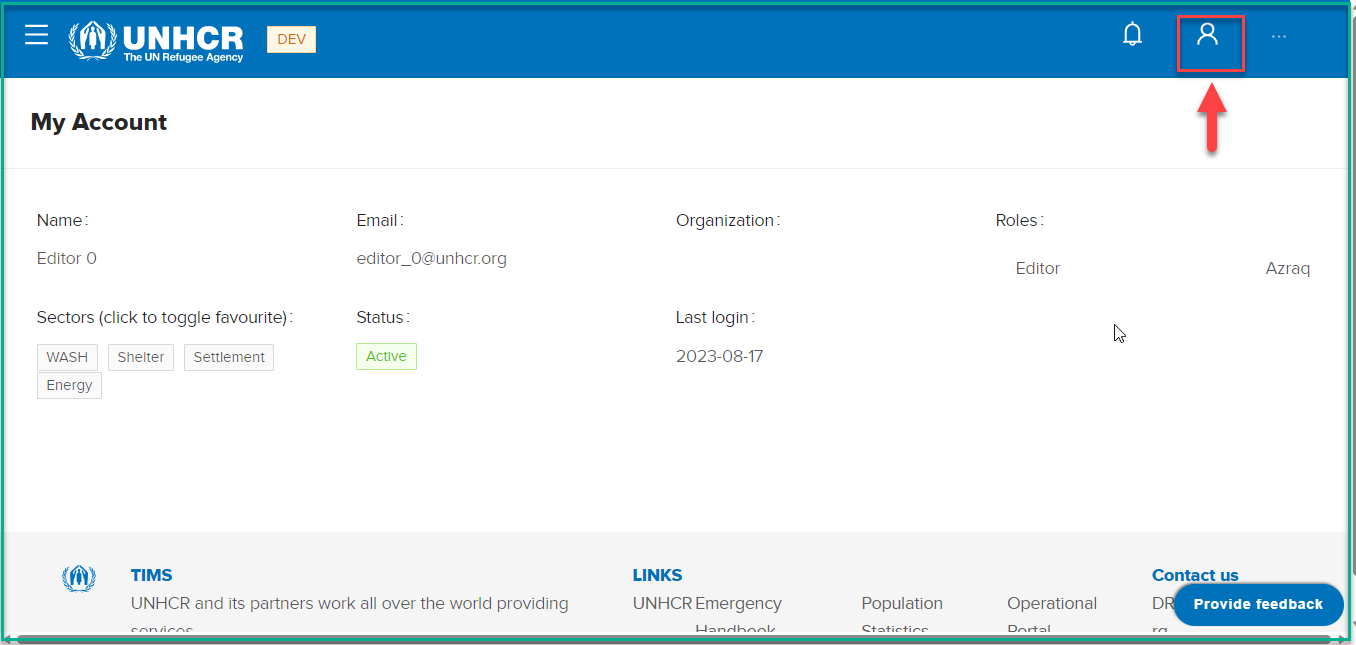
After logging in, navigate to your user profile .
- Click on the sector you wish to set as your favorite.
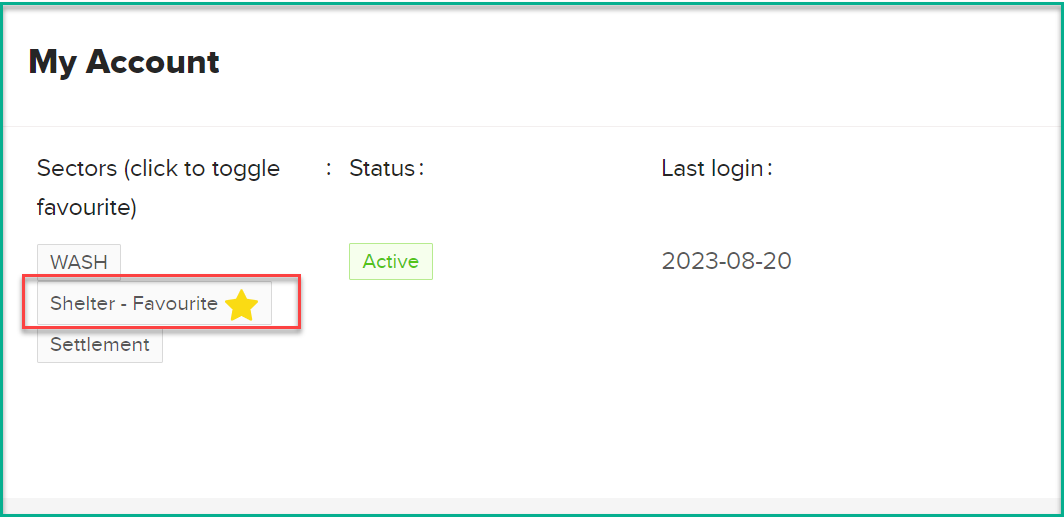
Note: Your Preferred Sector on the Landing Page
Once you've selected your favorite sector, our Landing Page will automatically display information related to this sector by default whenever you log in.